How to get started with your Volty workspace
A tour of a Volty workspace from first login: where channels are connected, how to test your AI agent on the Sandbox number, how to set things up by asking Volty, and what each part of the sidebar is for.
In this video
What's in it for you
- Know where everything lives before you set anything up: channels, the Sandbox number, Ask Volty, Rooms and the sidebar.
- See the order most teams set up in: connect a channel, test on the Sandbox, then teach Volty about your business.
- Find out what each part of the sidebar is for, so the rest of this series makes sense.
Step by step
- 1
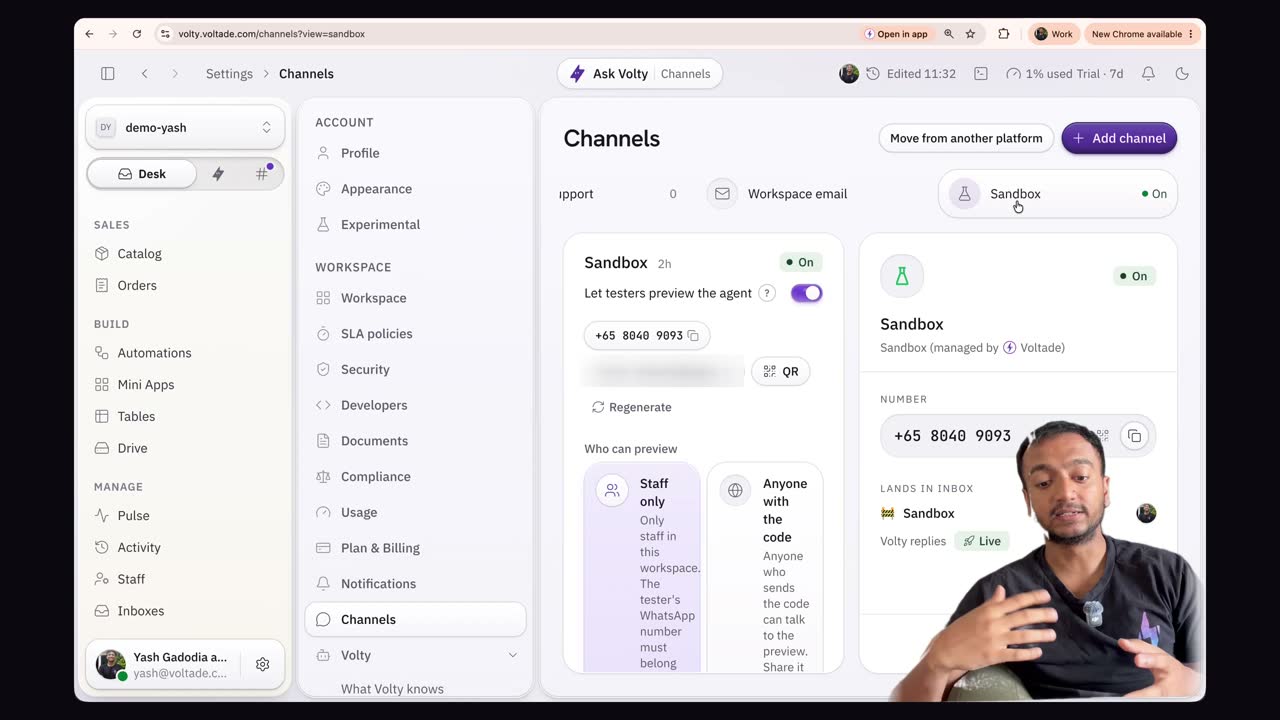
Start with channels. In Settings, Channels is where you connect your WhatsApp Business numbers, email inboxes and other channels.
Watch this step (0:31)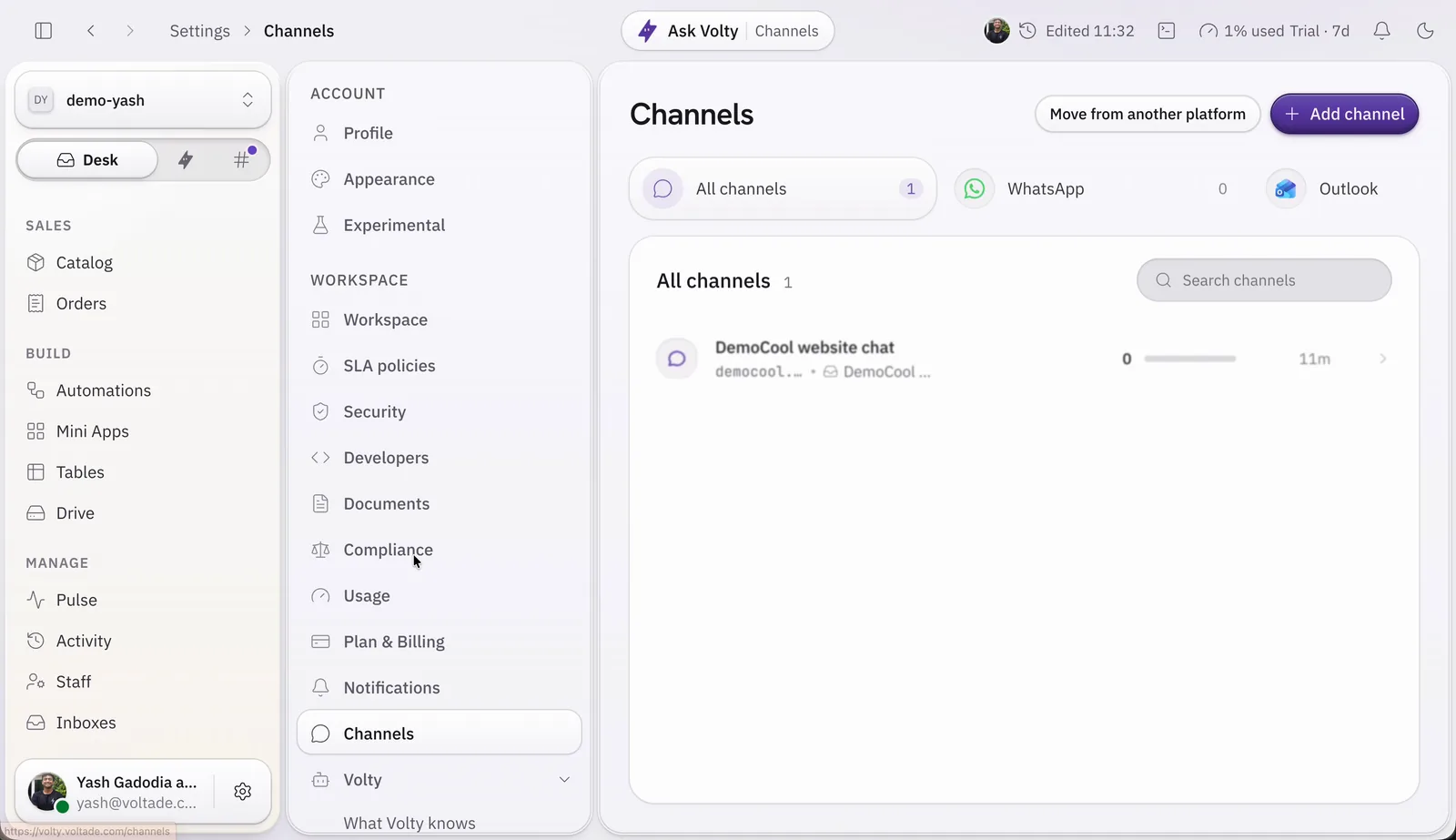
- 2
Every workspace comes with a Sandbox WhatsApp number. Message it from your own phone to test your agent before you connect your real number.
Watch this step (0:58)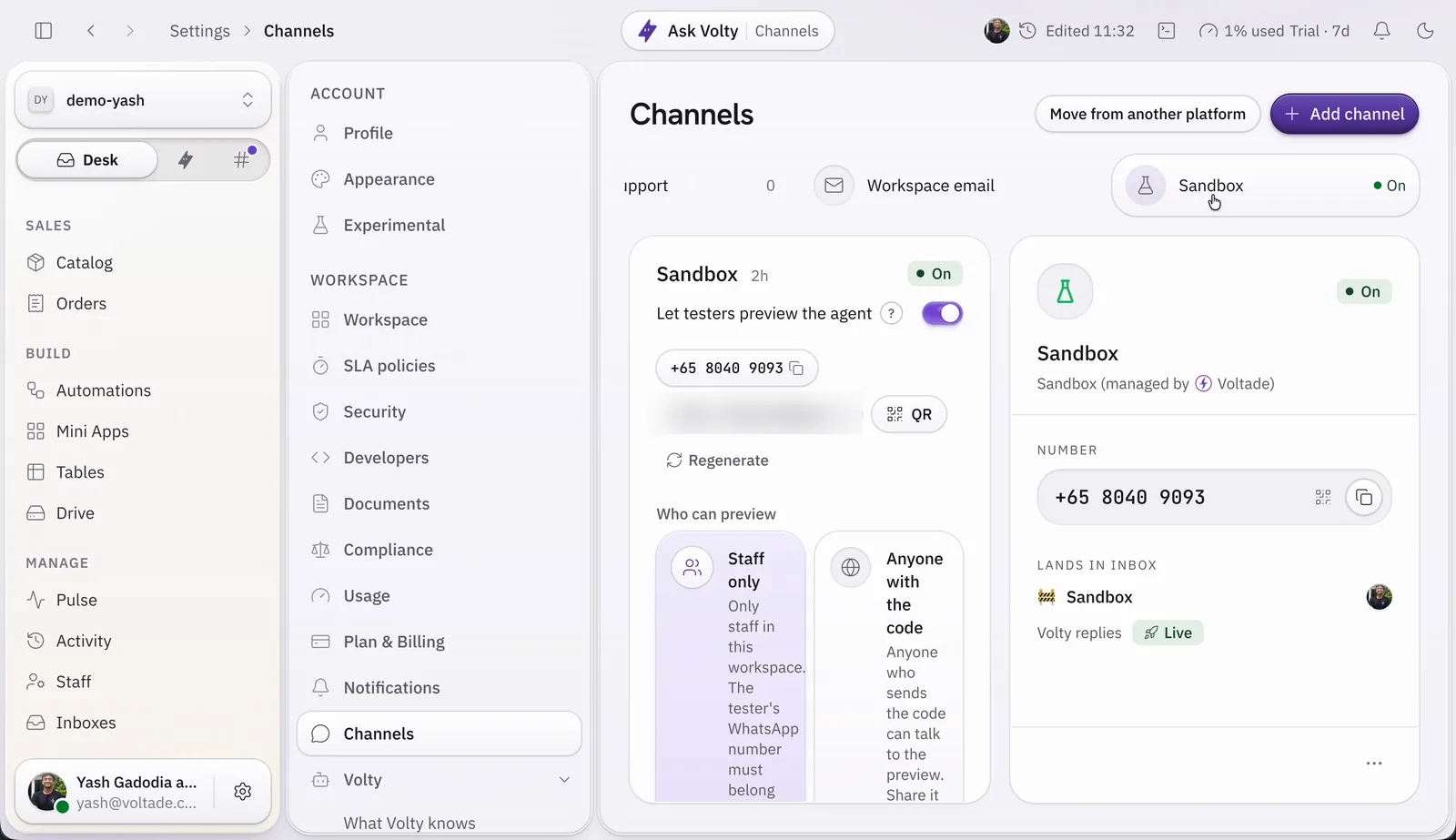
- 3
Ask Volty, at the top of every screen, sets up your workspace for you. Ask it how to do something, or ask it to do it.
Watch this step (2:23)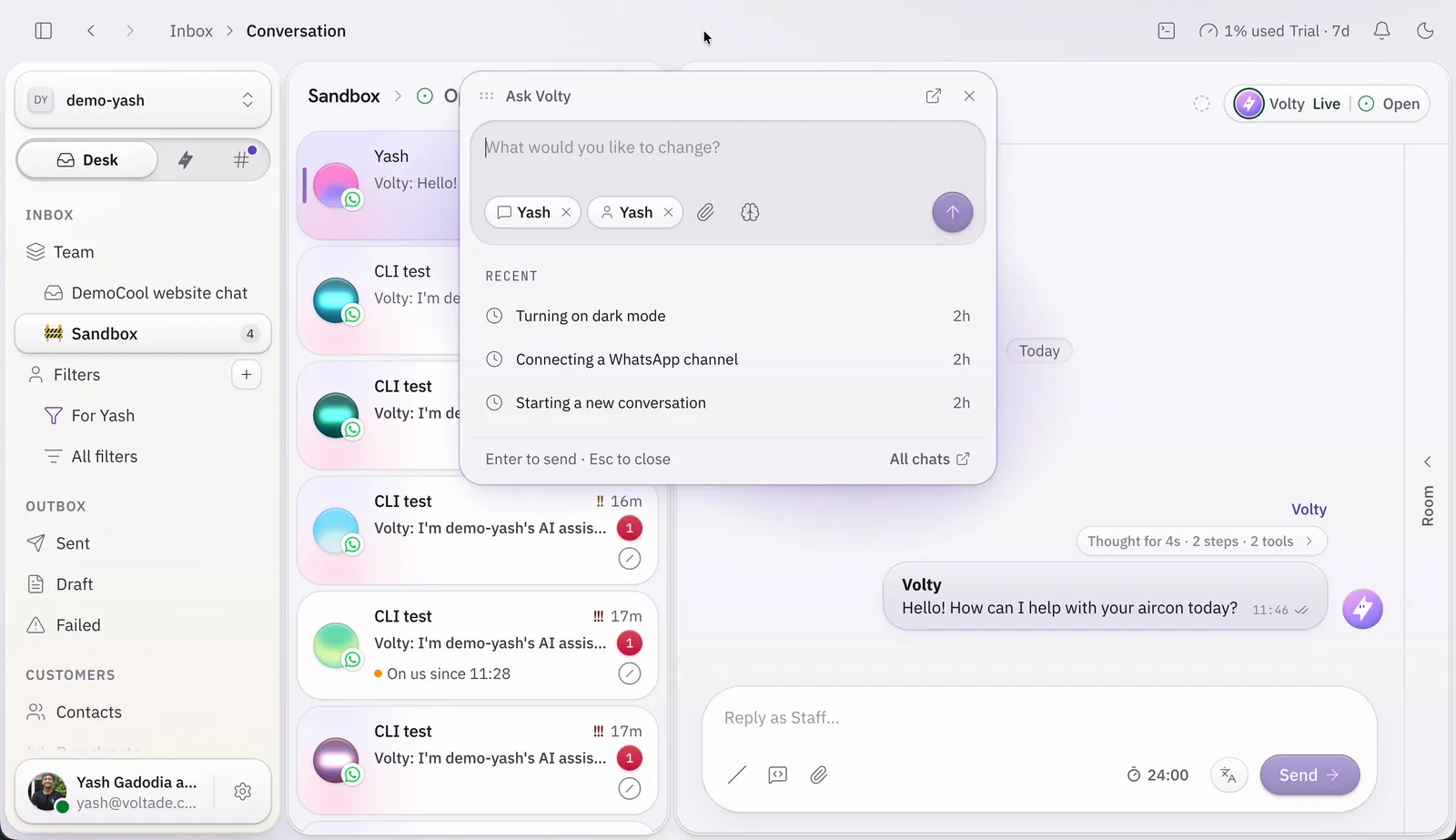
- 4
Give Volty your website and it reads it, so your agent can answer questions about your business.
Watch this step (3:50)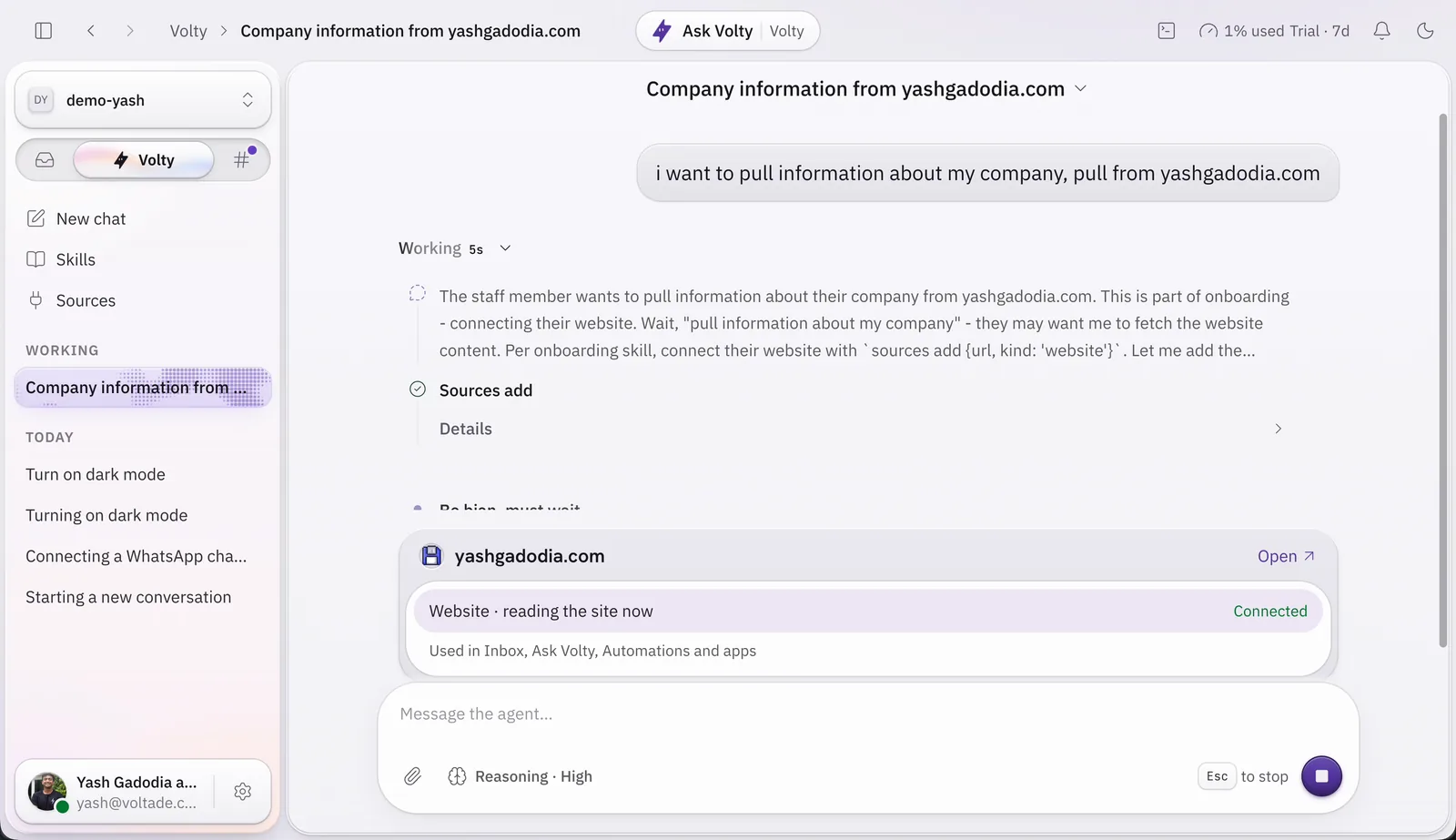
- 5
Rooms are internal group chats for your team, with Volty in them.
Watch this step (4:54)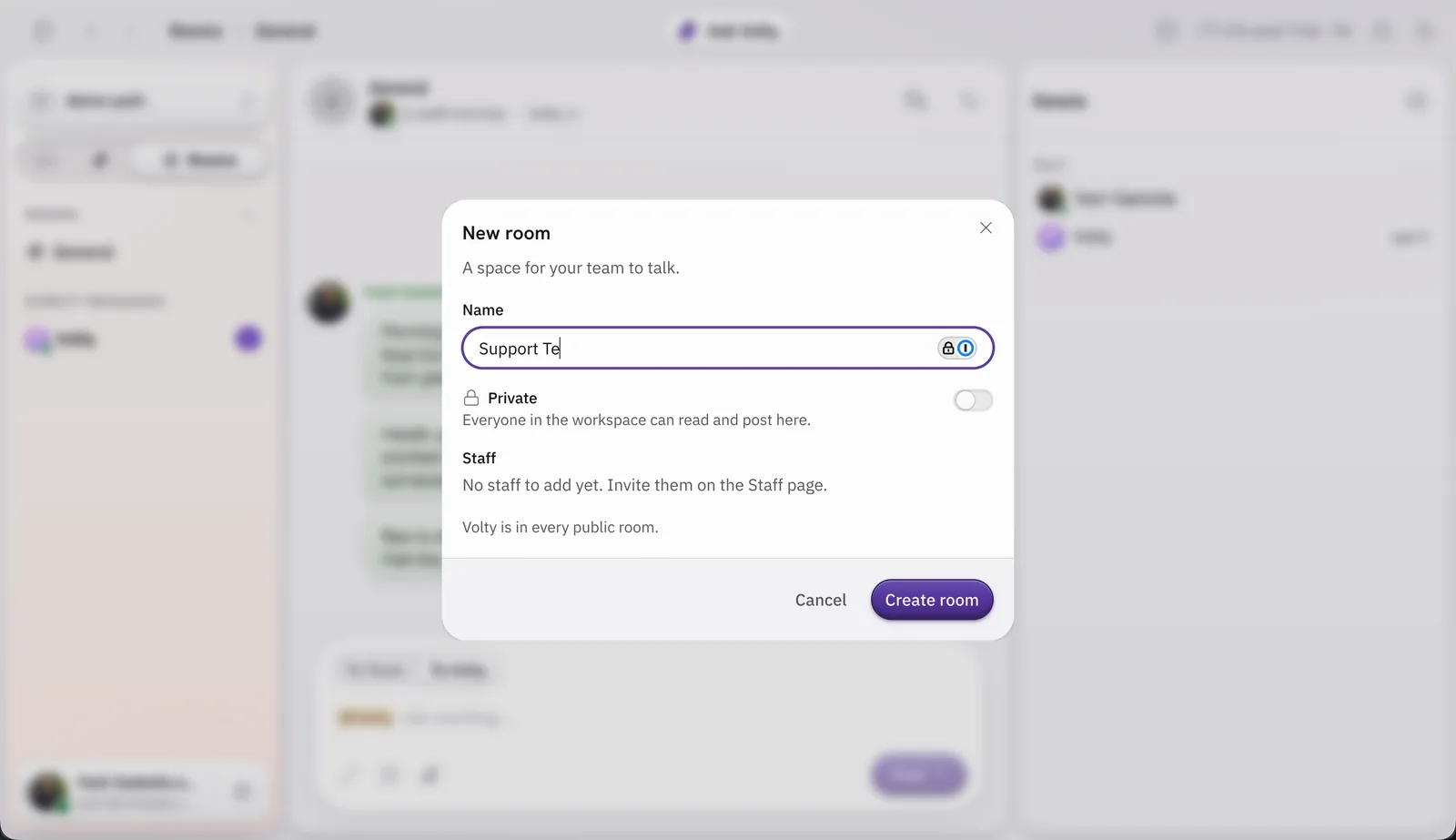
- 6
The sidebar holds the rest: inboxes and filters, the outbox, contacts and labels, deals, templates and broadcasts, the catalogue and orders, automations, mini apps, tables, drive, Pulse, activity and staff.
Watch this step (6:31)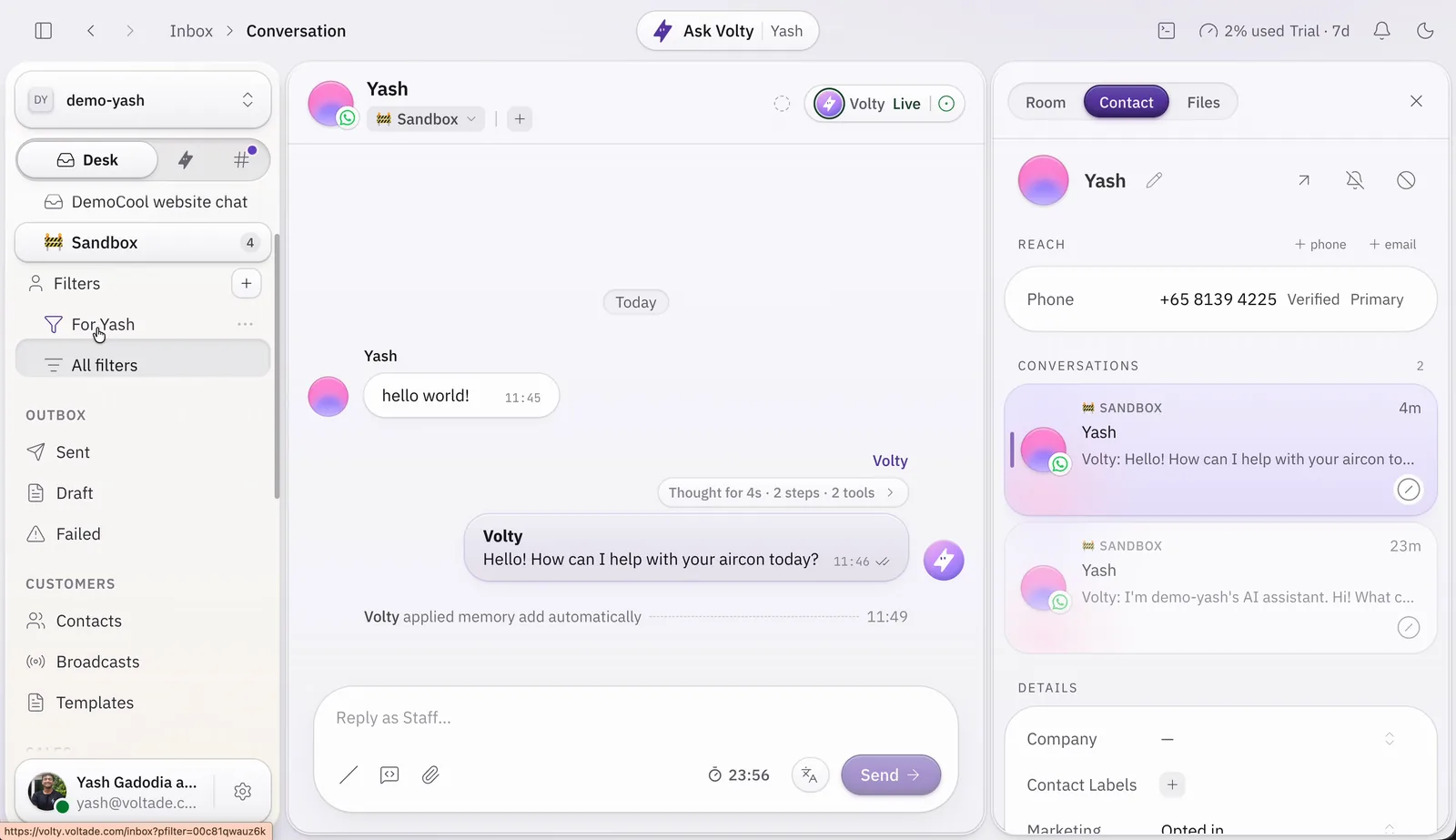
- 7
Your usage and plan are at the top right.
Watch this step (9:21)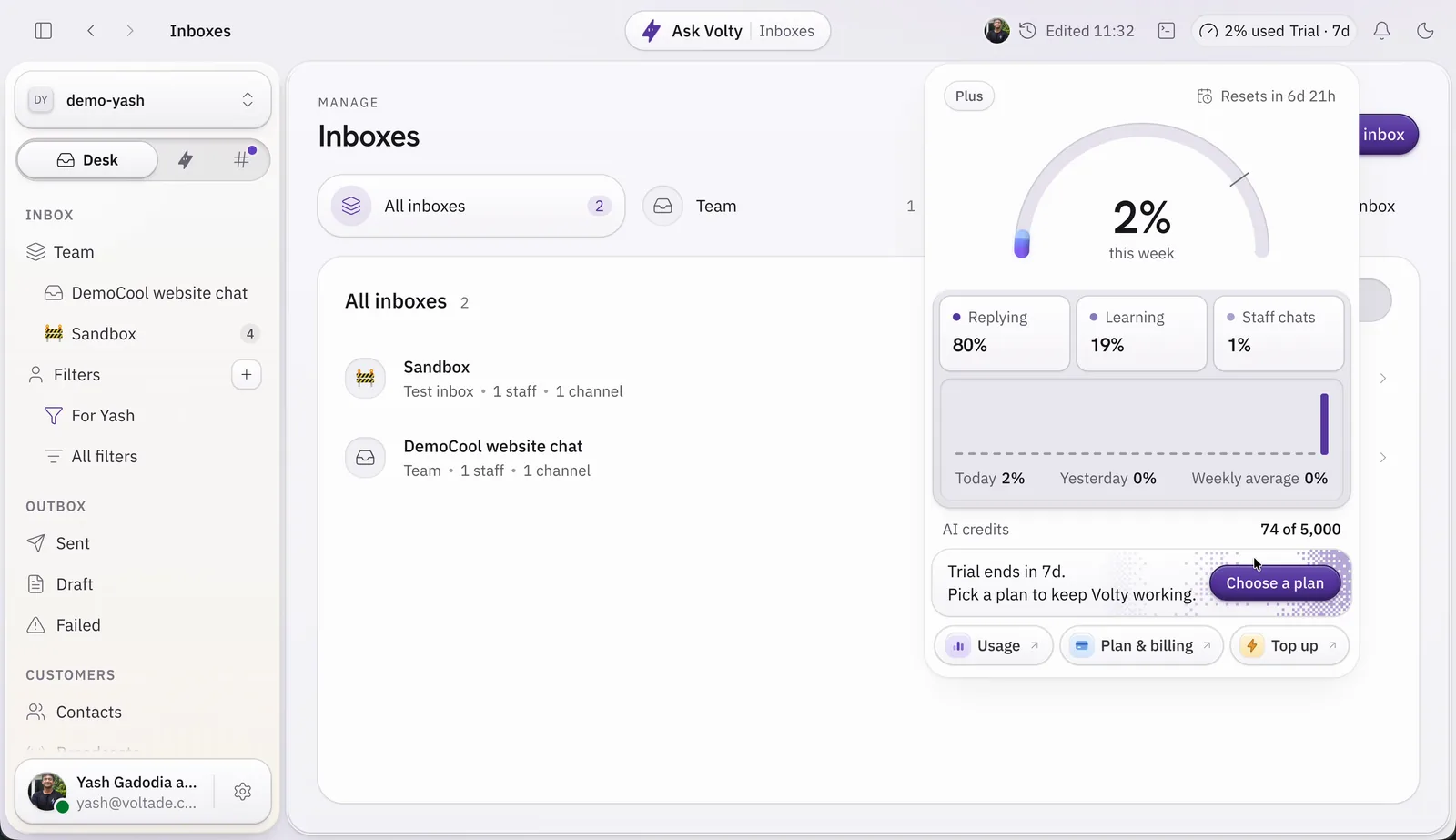
Make the most of it
- Watch the short videos in this series for each part, one task at a time.
- Stuck on where something is? Ask Volty, at the top of every screen, rather than hunting through settings.
Up next
Transcript
Hi there, Yash here from the Volty team. I'm a product manager at Volty. So here's a quick video on how you can make the most of your Volty workspace. So what we have here is a demo Yash workspace. So it's just a demo environment, no real data here. And I've just quickly created some test conversations, which I'll show you how you can do here as well. So a lot of customers ask, like, how do you get started? Like when they see an empty screen, they get a bit like worried. They don't know how Volty works or what they can do. So the first and the most important concept you need to understand is channels. So over here, when you go into settings, you will see channels. And when you click channels, this is where you can plug in all your various channels like what you have WhatsApp business numbers, your Outlook, and soon Gmail, and any other third party inboxes that you want to connect in. So every workspace comes with a sandbox number. What this sandbox number is, is a Voltade-provided number that you can use to test and test your agent, whether it's externally facing or internally facing, and get started with that. We also provide a sandbox email as well, which you can use to send emails and get that tested. But for the purpose of the demo, I'll be showing WhatsApp. So when you click this sandbox, there's a QR code here, which you can scan, and it will open your WhatsApp business, or rather your WhatsApp number. And you can see this link message, to send this test to link into the workspace. So I'm going to open my own WhatsApp now. And I'm going to go into this number, this Volty sandbox number. And I'm going to then enter it in order to preview my agent and send a message to begin. So as you can see, I was just testing earlier, but now I can say hello world. And Volty is already turned on by default. So now when you go into the inbox, you can see there is this sandbox here and my messages are coming in. And Volty is turned off, turned on rather and is live right now. So that's the first thing. End to end, how to log into your Volty workspace and how you can start a conversation with the sandbox. And from here, you can train the agent and connect it to your systems and test it before you plug in your real WhatsApp business number. The next thing to note is there is also this Ask Volty that's here on top of the screen. And this is what we recommend all of our customers to use in order to configure their workspace or ask questions about how to get started. So one example is like turn on dark mode. It's a bit contrived, this example, but it just shows you that you can even configure things in your Volty workspace just by talking to the agent. So what you'll see Volty now is that Volty will turn on dark mode. Rather than having to find, oh, where is this dark mode button which is right here on the top right. So even when you ask Volty, like, how can I add new users to my workspace? This is also done just by talking to this Ask Volty agent. You can add it in from the staff page, and then you can follow this instructions. And now we've also added this card in, which renders the actual UI, of what you will see. So you can even just type it in here, add in the number. And when you then send, when you press send invitation, it's the real invitation will be sent out. Because it's the component that's being rendered in this chat interface. But if it's a bit confusing to you, no problem, just press open here, and it will direct you to the page. And then you can just key that in. In a previous video, I shared about how you can connect Volty to your Claude Code. And that's also a very quick way to get started. So watch that video if you haven't already. So as you can see, now that you have a Volty agent and it's live, the next thing to do is to scrape your knowledge base or your company's website. And you can then pull information in and then test like this was very simple chatbot, even before it does any bookings, whether you can just understand your company and you can answer questions from there. So how that works is, again, you can ask Volty or you can use a Claude Code and you can just give it like your website that you have. Just say like pull. So rather than opening it here, there's also this view on the left where you can start a chat with Volty and I can say, I want to pull information about my company. For example, just pull from my own website. And this is where Volty can run internet searches, can pull information from online sources. As you can see, it's going to be pulling from my own personal website. And these chats that you have over here are personal to you. So they're not shared with your colleagues that will be using Volty as well. These are one-to-one chats. Now you may be wondering, but how do we create like group chats in Volty? And we have that feature in as well. So if you click here, there's a room feature. And now these are some test conversations that I had, but you can create a room. And I can call this, let's say, like a support team. And the room can be private or public. And because I don't have any staff in there, I can create some staff and add them into this room here. So then this is like your internal teams or internal WhatsApp group that you can have. But the key reason of why you want to use this room is that your Volty agent lives here also. So I can just tag Volty and I can say how many conversations have I had to be, for example. And now Volty should be able to answer these questions. Another key feature of the room is that if I'm having a conversation with someone, I can open a room on the right and I can talk to Volty and say, oh, this is a VIP person take note. Because I mean, especially for teams that are in the sales teams. They need to discuss about a particular lead or a customer that they have. So having this room feature is really helpful and can really help you to train your Volty agent as well, because you can tell Volty something. And now as you can see, Volty has written it into the memory where now if you go into the contact information itself, there is this note that's been added. That this person has been marked as a VIP, give them priority handling. So that's really the fundamental of channel inbox and a room feature. And then you can also use Volty to script your website. And it's updated the knowledge base that we have. So all the other features about Volty can be found on the panel here. So if you open it back, you can see that inboxes are here, then you can create some filters to assign to filter by chats assigned to you, or you can create a new filter to assign in round robin or like a team itself. Outbox is when you send a message out, it will be shown in the outbox here, you can also drop messages. And if you're doing a broadcast, the messages are shown here under fill, if any messages fail to go out. And then, of course, every person that messages you, these are just test numbers. And the test contacts that I've created. But all of these will be creating a contact where you can ask Volty to also update the company or any labels, you can create your own custom labels. Now we've also added in deals, where if you want to track like certain deals that are won or lost, sort of like a CRM feature, they'll be all done here. And then templates and broadcast is for sending out. Right now it's only on WhatsApp, but email is supported as well. But this feature over here is specifically for WhatsApp broadcast, you can connect your WhatsApp number and send out broadcast. I'll show that in another video later on. And then you first have to create a template in order to send out these broadcasts. Sales is just your catalog and orders that you can use as your storage of information. And the main bulk of it will be your automations, mini apps, tables, drive. So automations are things that can run daily or hourly or every minute. Let's say you want to send a self alert whenever a booking is made, or you want to follow up with the lead or send a reminder that will be done through automations. Mini apps are custom dashboards. For example, if you're running a clinic and a booking is being made, you can monitor all of them here. And you can create tons of these files, customizations just by talking to the agent by pressing edit, and then saying like, oh, add a button in to filter x, y, z. And then just talk to Volte directly to create these mini apps. Tables are like your database tables, or just tables to store information. This can be used to pull in from the mini app. So you can have Volte right into a table when a customer messages you on WhatsApp. And then the mini app connected to the table. And drive is just folders, documents, skills that you can upload into Volte. As I pulled staff from my website, created a skill file for me. And for Pals is to manage like how often how many conversations are coming in, how quickly your team is replying, you can see the activity here as well, the history of what everyone's doing, like, so I'm doing so many actions. So it's all audited. And then staff is where you can add your teammates in. And of course, back to inboxes, which is a clapping point for everything. So this is a quick video. I know it's a lot of information, feel free to pause and watch it again if need be. But most of the features are outlined here. The last thing I'll talk about before the end of the video is on the top right, you can see your usage as well. So currently we're on a trial plan, which ends in seven days. If I put in a payment method, I can extend this trial by another seven days. But you can track your usage and top up for your billing as well. So when I go into the usage here, I can see usage breakdown based on activities, context, staff, automations, inboxes. And so this is really helpful for governance as well. If you want to see like where are your tokens being spent, it all goes in here. And so this tab can also be where you can choose a plan and add in your payment method. So it's all on volte itself. And if you're unclear at any point in time, just ask multi say like, what is the pro plan for? Right? Is it suitable for my company? And so both these really self service, you can just talk to both the agent directly and it can help you out and get you started. So yeah, thank you for watching. Any questions, what's up us on our website, we have a number there. And that's directly how you can reach us. That's the best way to get to reach us directly. And yeah, there's other videos as part of this series. So feel free to watch those as well and see you in the next one. Bye
Start your Sandbox Trial
Sign up for our 7-day trial. No credit card needed.
Future-proof your business with AI. Hear from our CEO

The Leonard and Volty Show · October 8, 2026
Meta now charges for WhatsApp replies
The Leonard and Volty Show · October 1, 2026
Too busy to hire?
The Leonard and Volty Show · September 21, 2026
From $500 chatbot jobs to agentic AI
The Leonard and Volty Show · September 10, 2026
Your AI is a new employee

The Leonard and Volty Show · September 4, 2026
Trust in the AI world
The Leonard and Volty Show · August 29, 2026
Does the AI model matter?
The Leonard and Volty Show · August 19, 2026
What are AI agents?
Meta now charges for WhatsApp replies. Here's what it means for your business, October 8, 2026