Test your AI agent with the Sandbox number
Every Volty workspace comes with a Sandbox WhatsApp number. Message it from your own phone and you are talking to your workspace's AI agent, so you can test it before you connect your real WhatsApp Business number.
In this video
What's in it for you
- Talk to your AI agent from your own phone before any customer can reach it.
- Nothing to set up: every workspace comes with a Sandbox number that Voltade manages.
- Change your instructions and test again as often as you like, then connect your real number once the answers are right.
Before you start
- WhatsApp on your phone.
- Your Volty workspace open on a computer.
Step by step
- 1
Go to Settings, then Channels. This is where all your channels are connected: WhatsApp Business numbers, email inboxes and others.
Watch this step (0:06)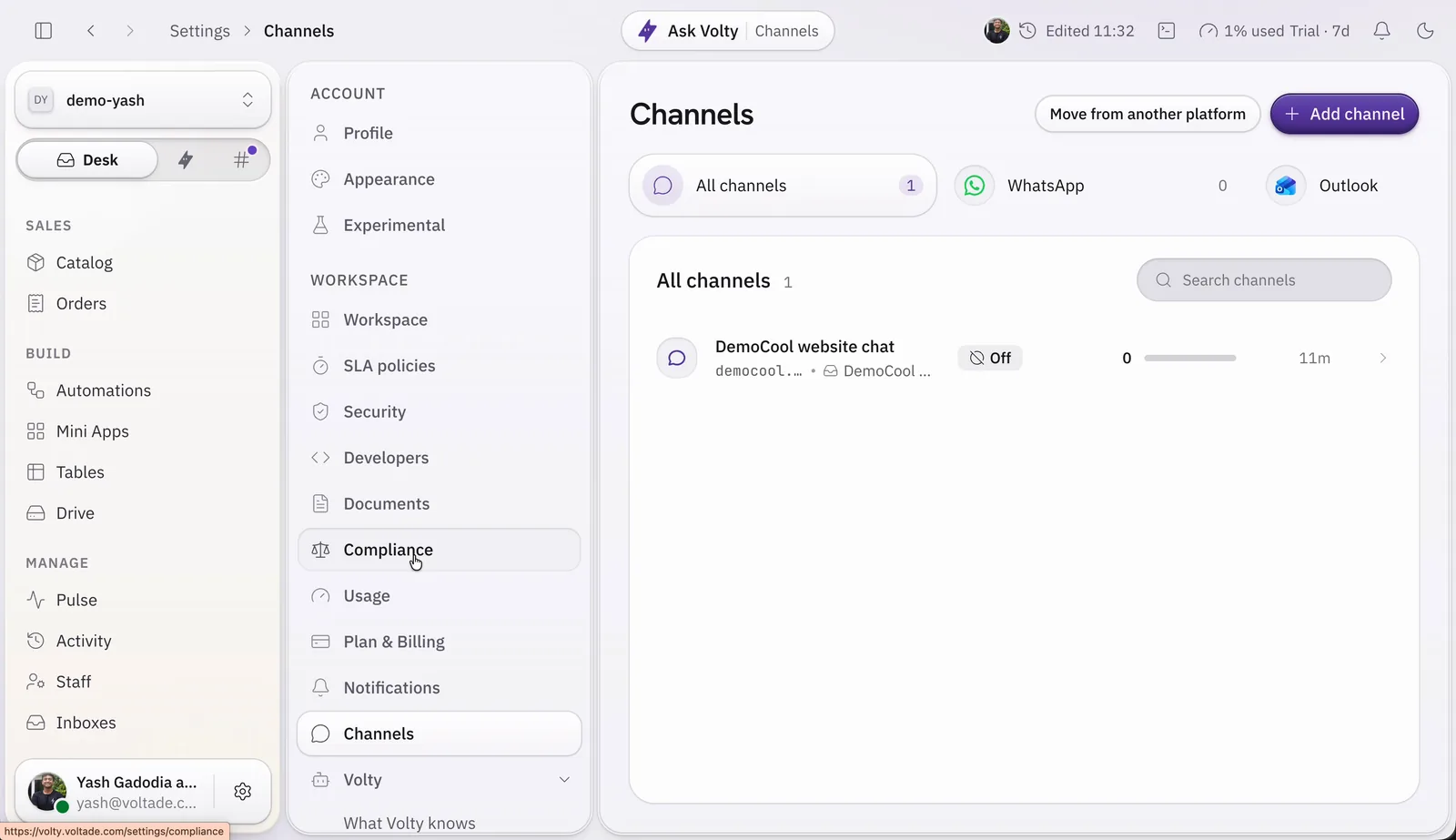
- 2
Open the Sandbox card. Your workspace's Sandbox number is managed by Voltade, so there is nothing to set up.
Watch this step (0:24)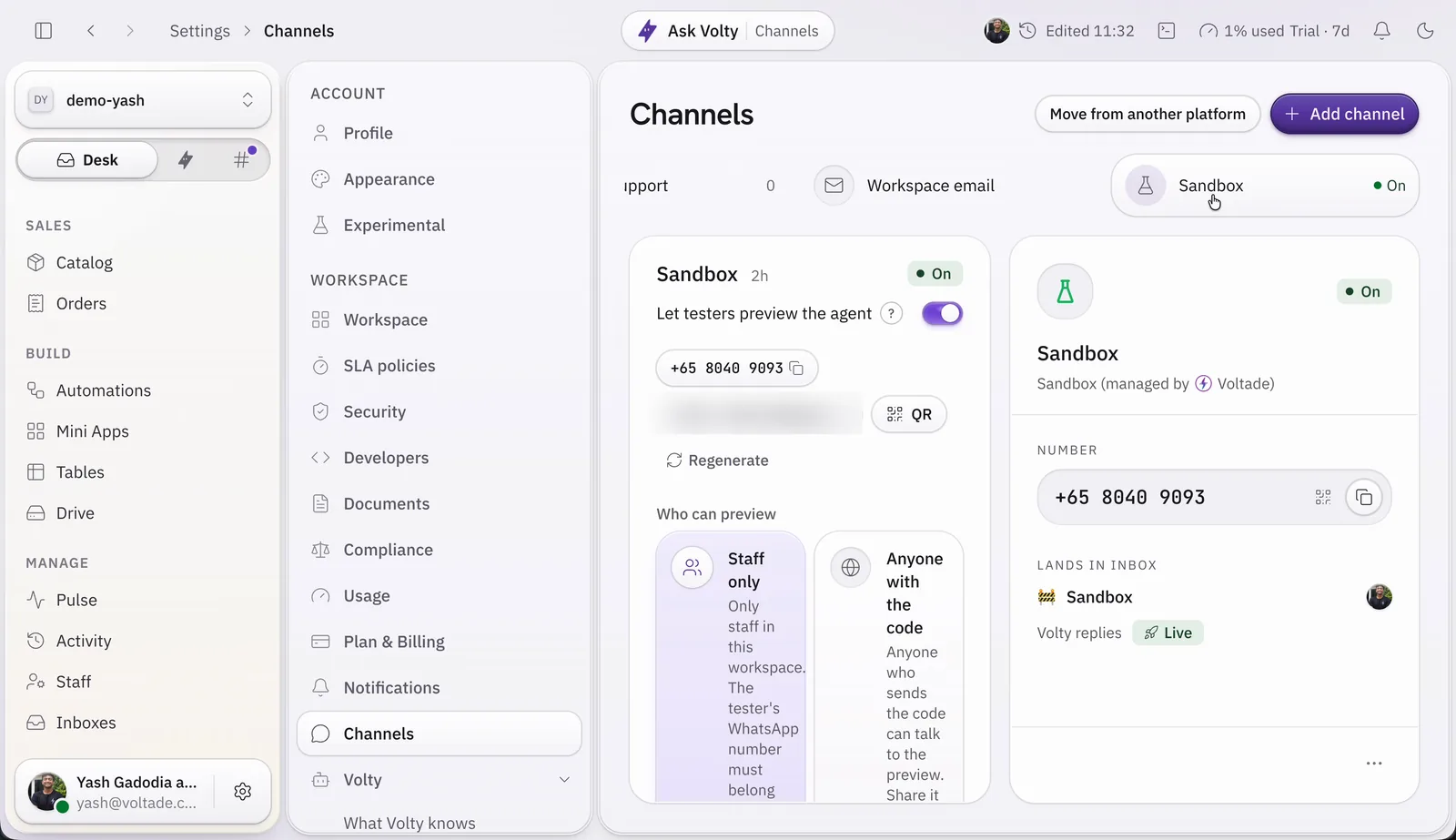
- 3
Scan the QR code with your phone, or tap Open in WhatsApp. WhatsApp opens with a /test message ready to send. Send it to link your phone to the workspace.
Watch this step (0:51)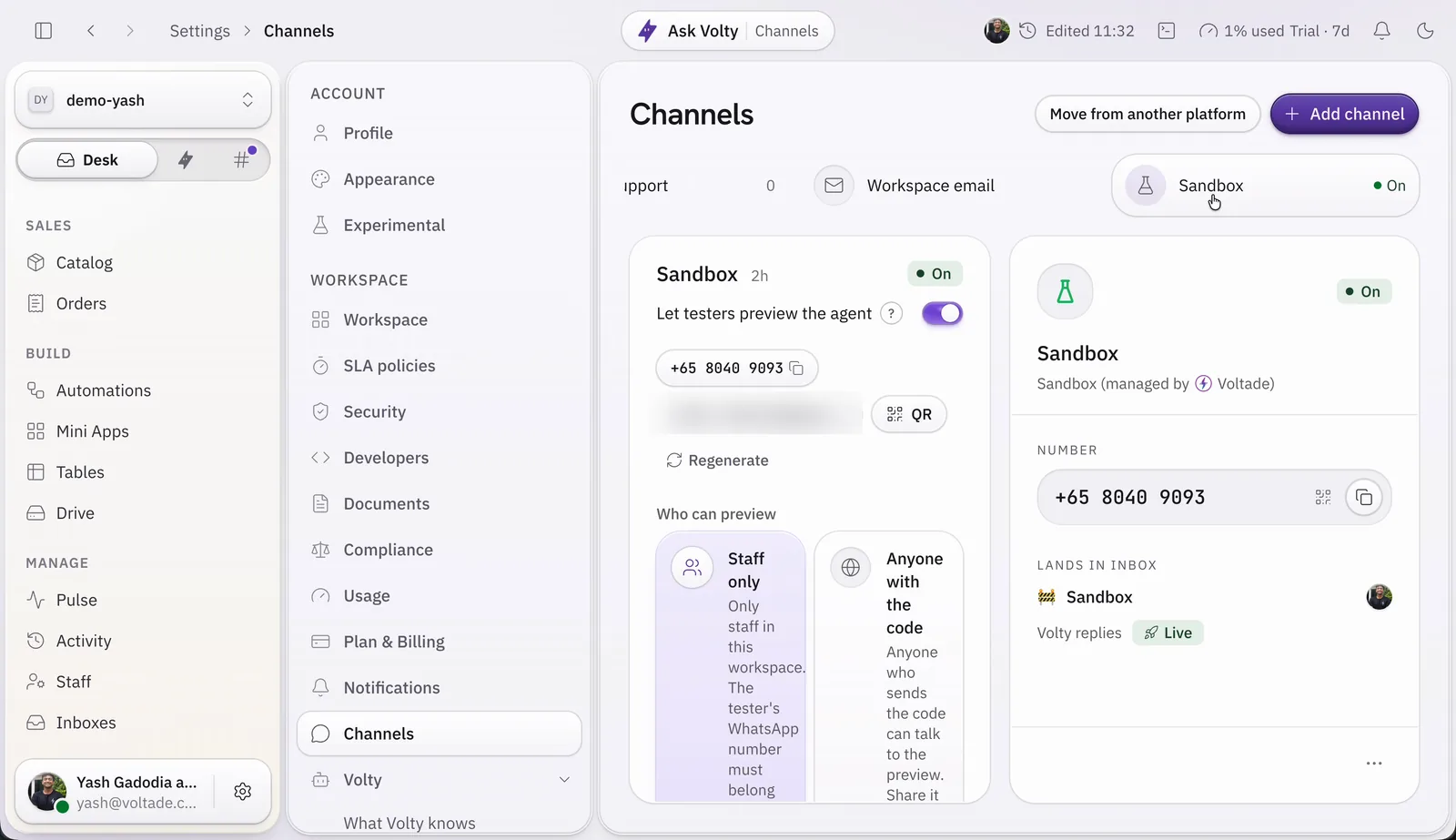
- 4
Send a message, for example "hello world". Volty is on by default and replies.
Watch this step (1:18) - 5
In Volty, open the Inbox: the Sandbox inbox shows your conversation, with Volty live on it.
Watch this step (1:28)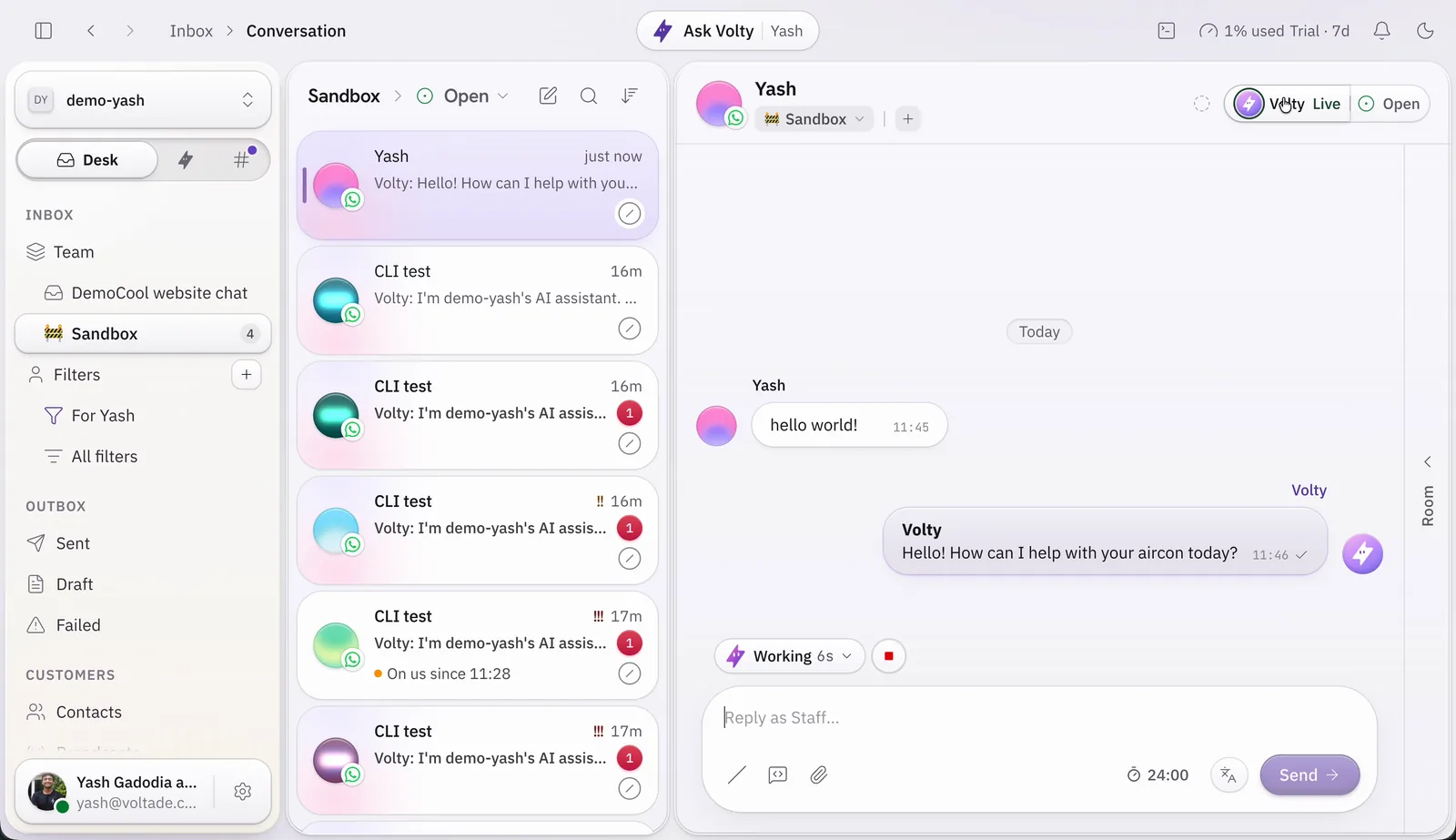
- 6
From here, train your agent, connect it to your systems and test it again, all before you connect your real WhatsApp Business number.
Watch this step (1:43)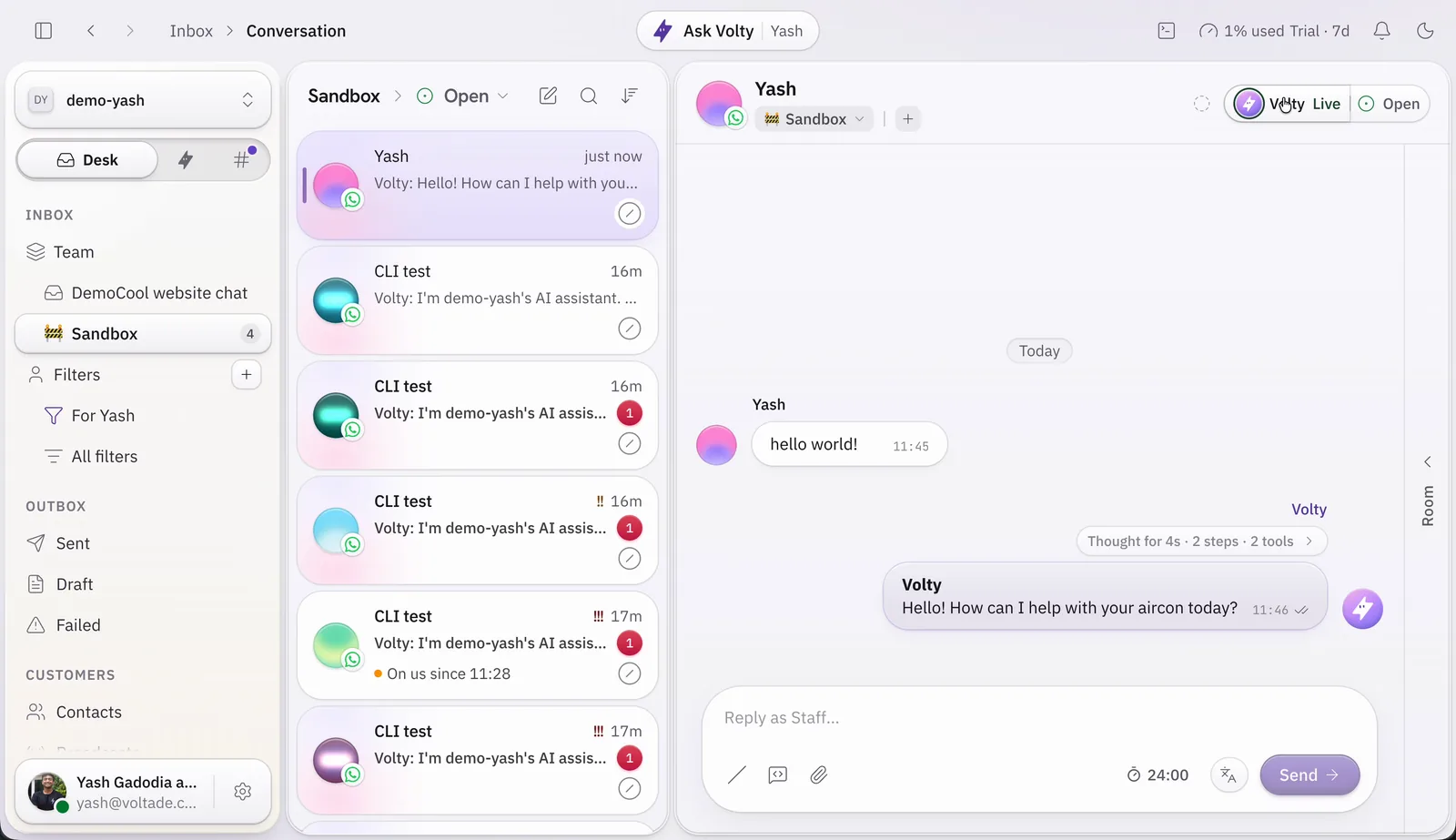
Make the most of it
- Test what your customers really ask: a greeting, a price or product question, a request to speak to a person, and a message in each language your customers use. These are the checks the Volty team runs before any go-live.
- Testing a website chat instead? You don't need the Sandbox for that: open the chat on your site and message it directly.
If it doesn't work
- Volty doesn't reply in the Sandbox.
- Check the top right for your plan. When a trial ends, Volty stops replying without showing an error. Choose a plan under Plan & billing, or ask us to extend the trial.
- Volty replied once, then went quiet.
- When someone on your team replies in the chat, or it's handed to a person, Volty steps back from that chat. Open the conversation and hand it back to Volty, or set it to Live.
- The chat is waiting for someone to press Send.
- That inbox or chat is on Draft: Volty writes the reply and a person sends it. To let Volty send on its own, go to Manage, Inboxes, open the inbox and change its reply mode from Draft to Live.
Up next
Transcript
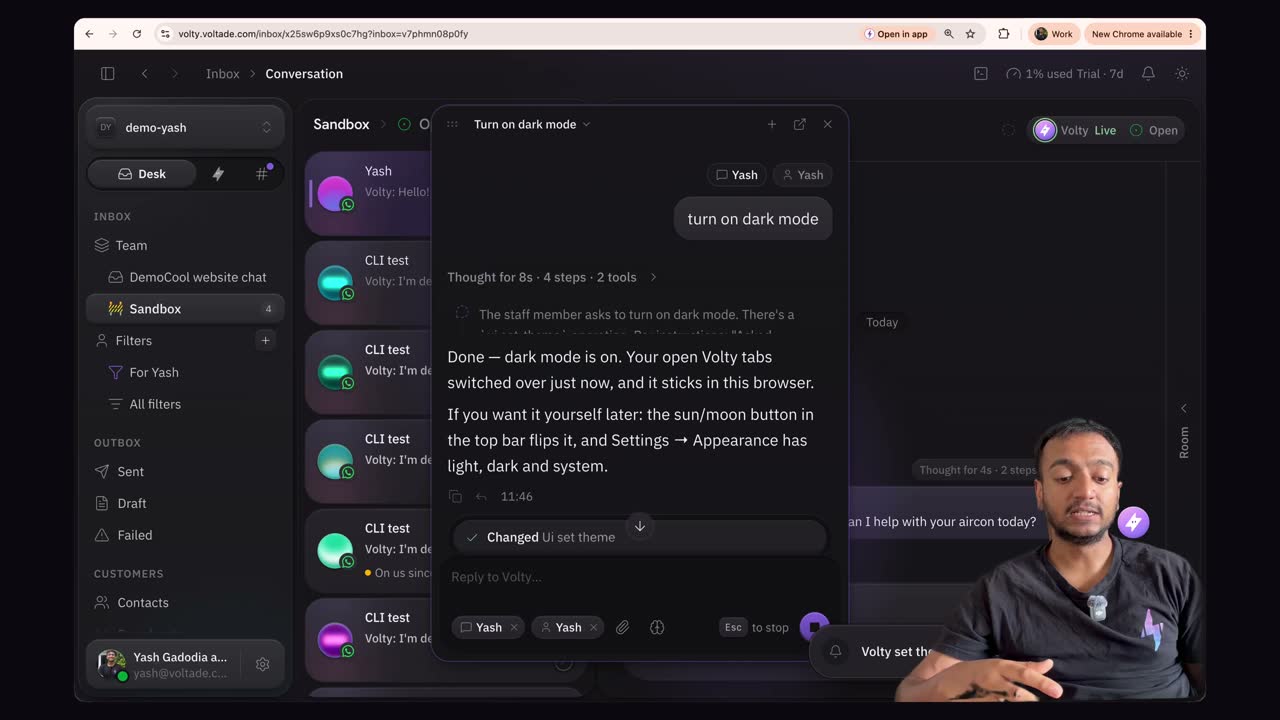
So the first and the most important concept you need to understand is channels. So over here, when you go into settings, you will see channels. And when you click channels, this is where you can plug in all your various channels like WhatsApp business numbers, your Outlook, and soon Gmail, and any other third party inbox that you want to connect in. So every workspace comes with a sandbox number. What this sandbox number is, is a Voltade-provided number that you can use to test and test your agent, whether it's externally facing or internally facing, and get started with that. We also provide a sandbox email as well, which you can use to send emails and get that tested. But for the purpose of the demo, I'll be showing WhatsApp. So when you click this sandbox, there's a QR code here, which you can scan, and it will open your WhatsApp business, or rather your WhatsApp number. And you can see this link message, to send this test to link into the workspace. So I'm going to open my own WhatsApp now. And I'm going to go into this number, this Volty sandbox number. And I'm going to then enter it in order to preview my agent and send a message to begin. So as you can see, I was just testing earlier, but now I can say hello world. And Volty is already turned on by default. So now when you go into the inbox, you can see there is this sandbox here and my messages are coming in. And Volty is turned off, turned on rather, and is live right now. So that's the first thing, end to end how to log into your Volty workspace and how you can start a conversation with the sandbox. And from here, you can train the agent and connect it to your systems and test it before you plug in your real WhatsApp business number.
Start your Sandbox Trial
Sign up for our 7-day trial. No credit card needed.
Future-proof your business with AI. Hear from our CEO

The Leonard and Volty Show · October 8, 2026
Meta now charges for WhatsApp replies
The Leonard and Volty Show · October 1, 2026
Too busy to hire?
The Leonard and Volty Show · September 21, 2026
From $500 chatbot jobs to agentic AI
The Leonard and Volty Show · September 10, 2026
Your AI is a new employee

The Leonard and Volty Show · September 4, 2026
Trust in the AI world

The Leonard and Volty Show · August 29, 2026
Does the AI model matter?
The Leonard and Volty Show · August 19, 2026
What are AI agents?
Meta now charges for WhatsApp replies. Here's what it means for your business, October 8, 2026