Connect your coding agent (Claude Code) to Volty
Volty is built to be set up by AI agents. Connect a coding agent such as Claude Code to your workspace through the volty CLI, then configure Volty by asking it in plain words.
In this video
What's in it for you
- Set up your workspace by telling your coding agent what you want, instead of clicking through settings.
- Building with your own Claude Code or Codex is free: it doesn't use your Volty AI credits.
- Moving from your own setup? Your agent already knows your project, so it can bring it into Volty in one go.
Before you start
- Claude Code, or another coding agent such as Codex, installed on your computer.
- Your Volty workspace open in the browser.
Step by step
- 1
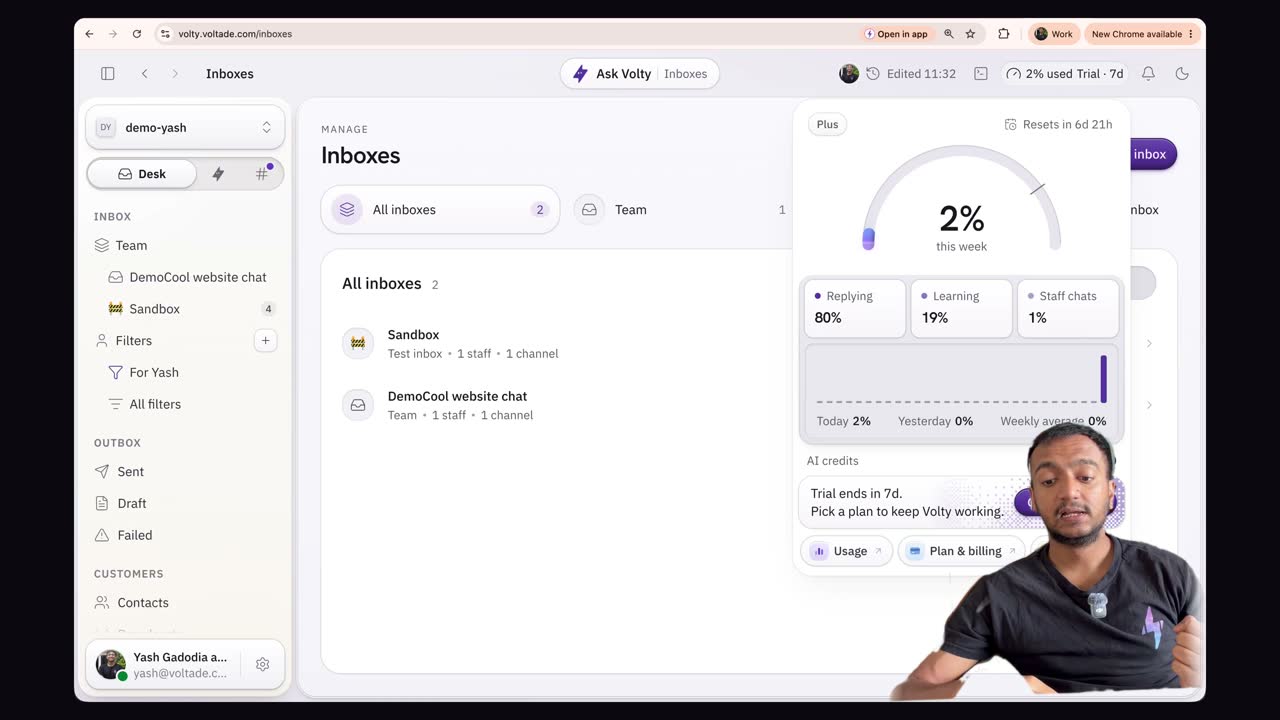
In your Volty workspace, click volty CLI at the top right and copy the command.
Watch this step (0:05)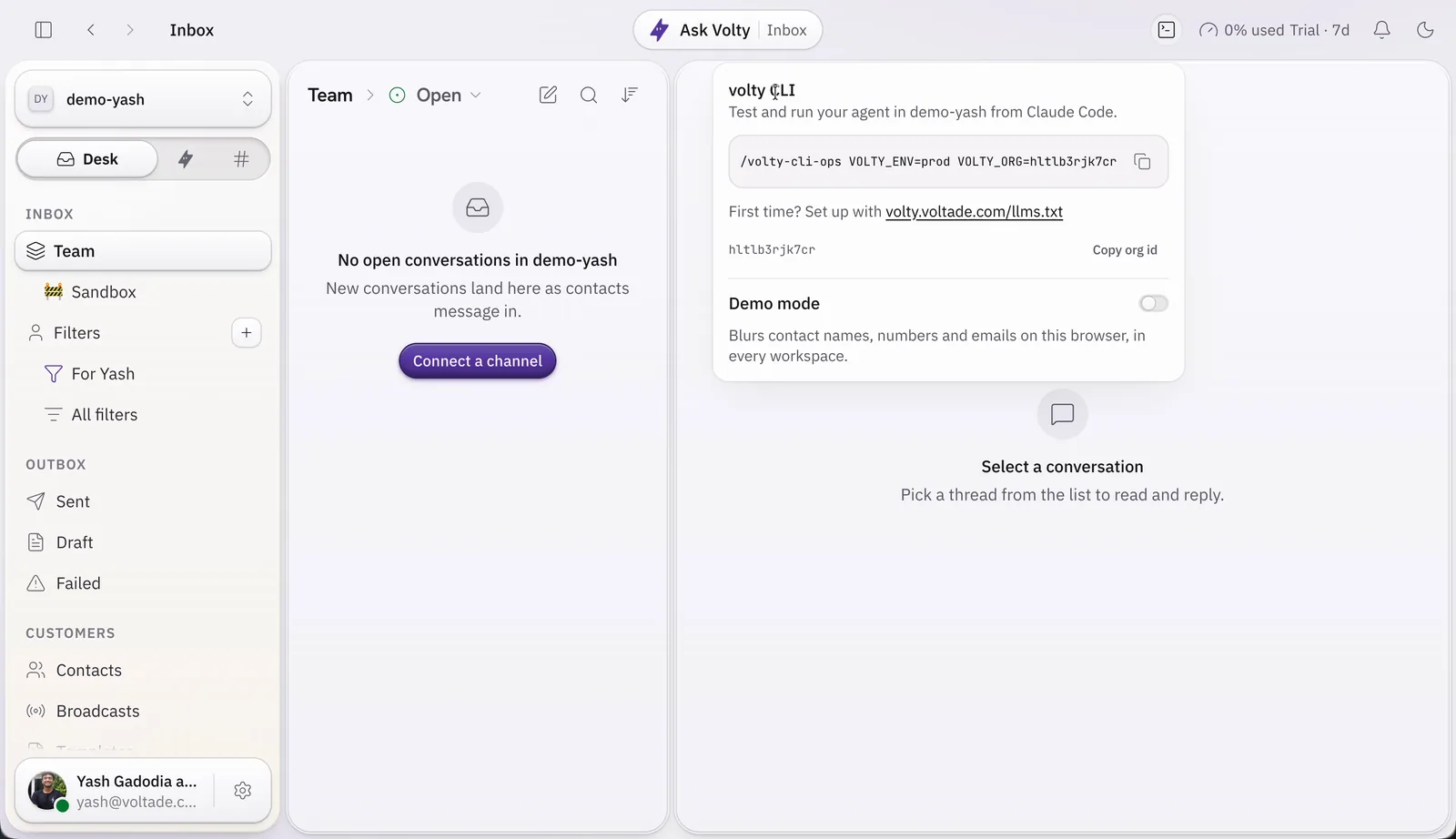
- 2
Paste it into Claude Code. The first time, also give it volty.voltade.com/llms.txt, the reference file that tells your agent what the CLI can do, and ask it to set up the connection.
Watch this step (0:14)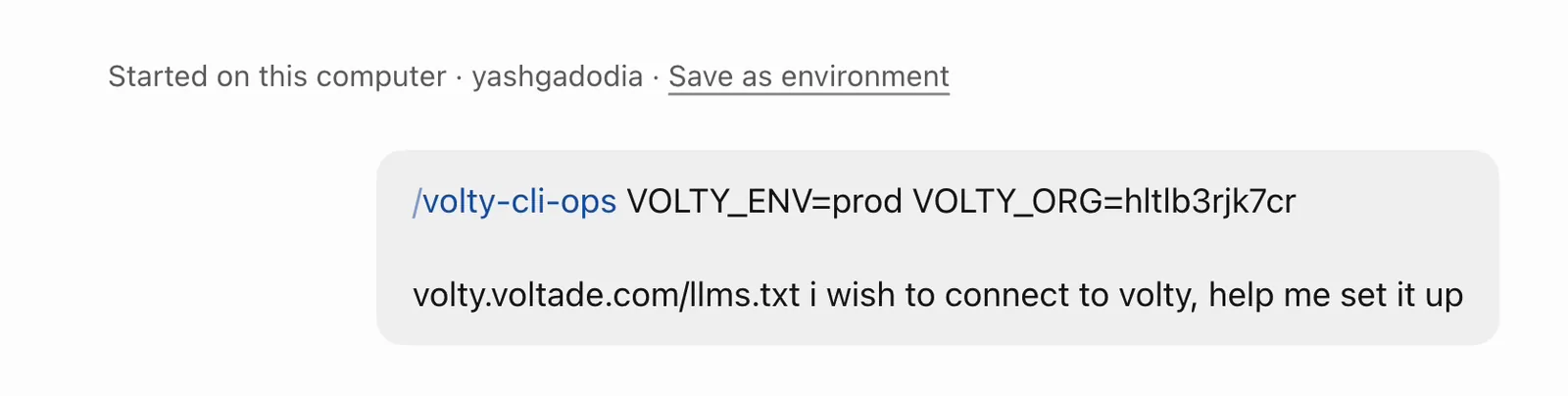
- 3
Your agent installs the volty CLI and starts signing you in. A browser window opens: approve Authorize the volty CLI, then close the window.
Watch this step (0:40)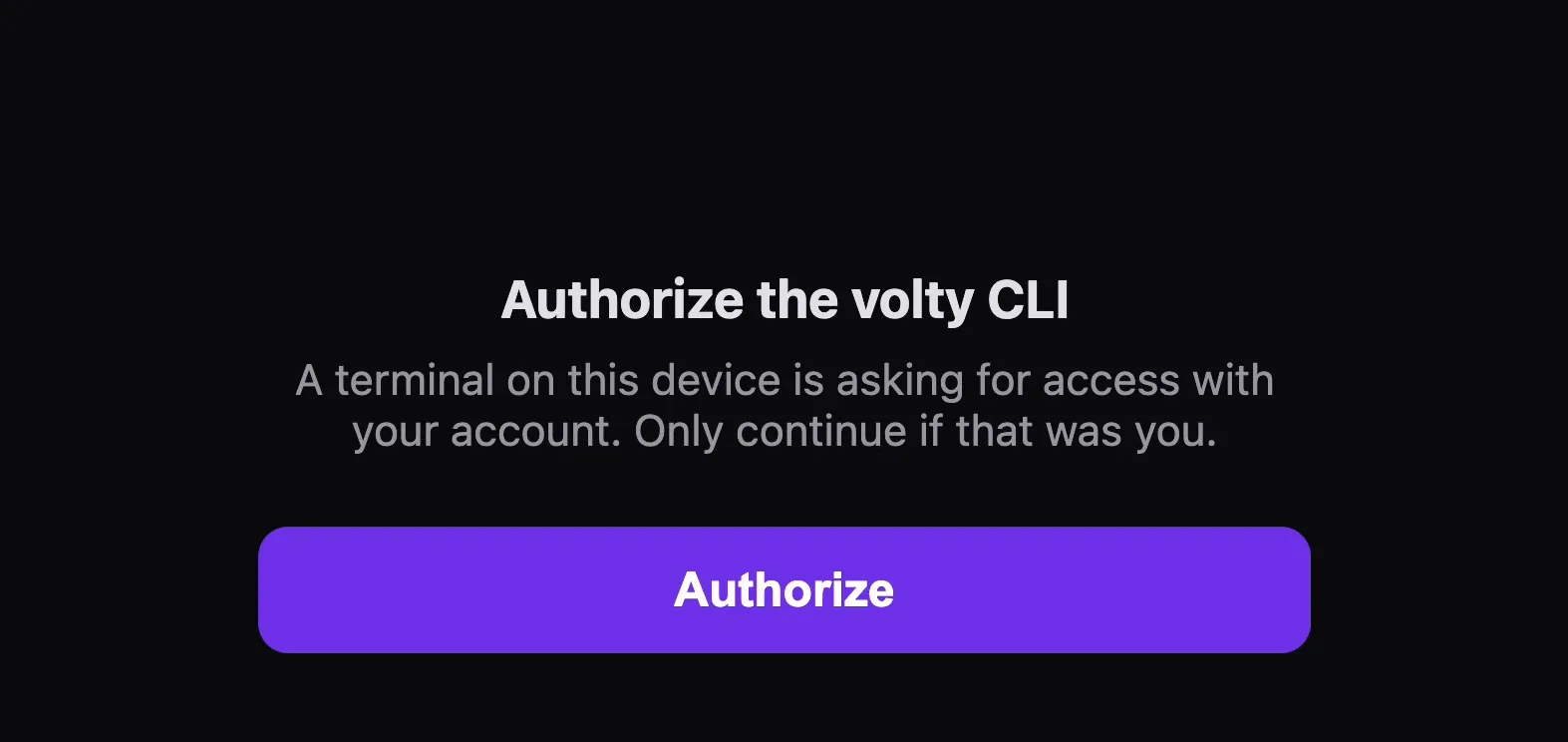
- 4
Test the connection, for example: "How many users are in this workspace?"
Watch this step (0:57)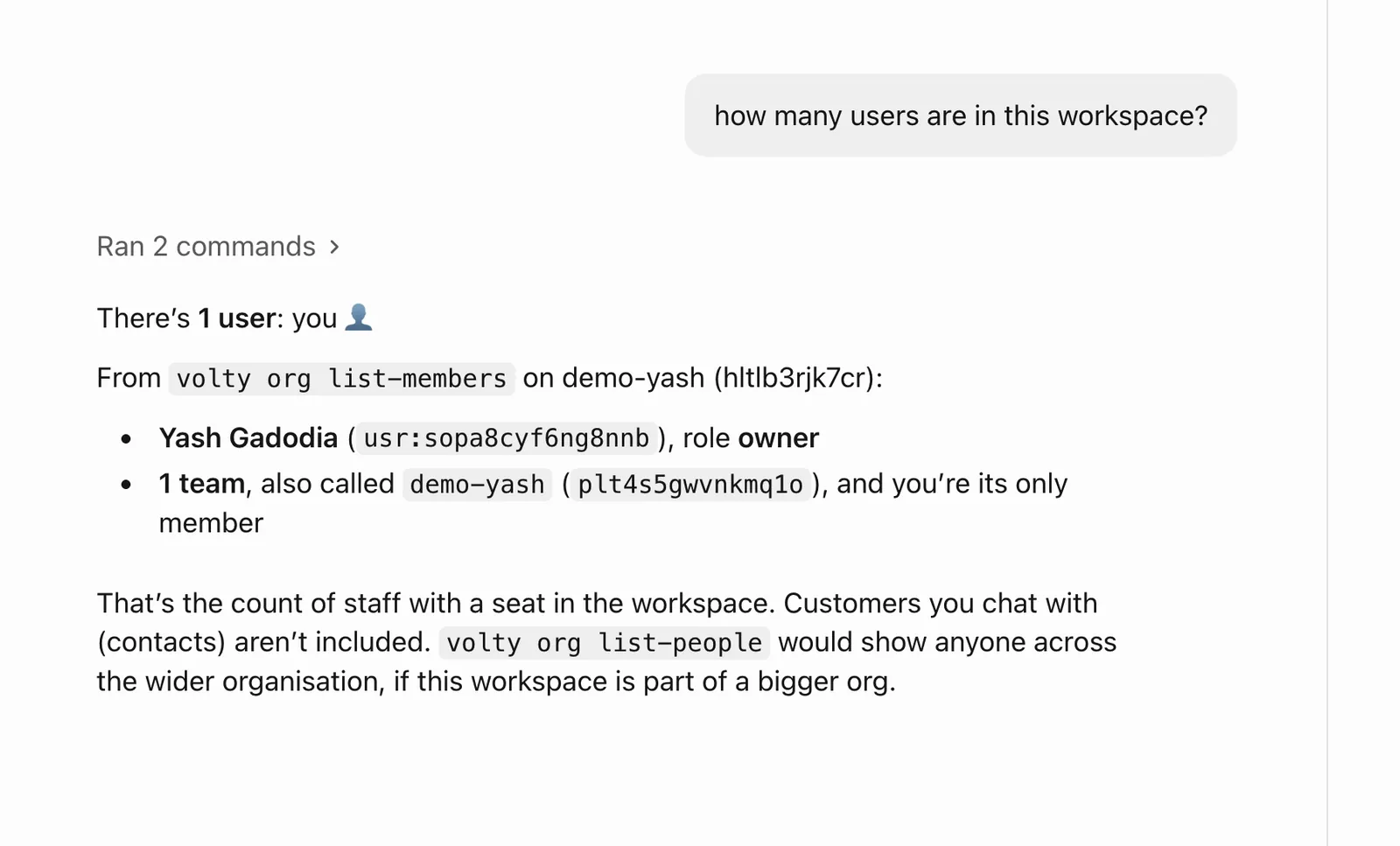
Make the most of it
- Give your agent the llms.txt link the first time. It tells your agent every command the volty CLI has.
- Once it's connected, ask for real changes, for example "invite my manager as an admin".
If it doesn't work
- There's no volty CLI button at the top right.
- Refresh the page. The button appears after a refresh.
Up next
Transcript
Hi, Yash here from the Volty team. Here's a quick explanation on how you can set up your Claude Code with Volty. What you can do is, on the top right, you see this button with Volty CLI. So what I'm going to do is I'm going to copy this command here. And what I can also do is I can copy this volty.voltade.com/llms.txt. It is just a reference file for your agent to see what Volty CLI is about. So when I go back to my Claude Code now, I can paste this in and I can say I wish to connect to Volty, help me set it up. And from here, your Claude Code should be able to do everything that's needed to connect into your Volty CLI. So as you can see, what will happen is your Claude Code will open Volty app and it will try to authenticate you. So this is where you will have to provide access to your Claude Code to connect into Volty. So once this is done, you can close this window and you can go back and you can see that it's approved. Okay, so you're signed in. So now what I can do is I can see how many users are in this workspace. And this is how you can very easily just talk to your Claude Code to configure Volty. Okay, so one user. See you in the next video. Thanks.
Start your Sandbox Trial
Sign up for our 7-day trial. No credit card needed.
Future-proof your business with AI. Hear from our CEO

The Leonard and Volty Show · October 8, 2026
Meta now charges for WhatsApp replies

The Leonard and Volty Show · October 1, 2026
Too busy to hire?

The Leonard and Volty Show · September 21, 2026
From $500 chatbot jobs to agentic AI

The Leonard and Volty Show · September 10, 2026
Your AI is a new employee

The Leonard and Volty Show · September 4, 2026
Trust in the AI world

The Leonard and Volty Show · August 29, 2026
Does the AI model matter?

The Leonard and Volty Show · August 19, 2026
What are AI agents?
Meta now charges for WhatsApp replies. Here's what it means for your business, October 8, 2026