Ask Volty: set up your workspace by chatting
Ask Volty sits at the top of every screen in your workspace. It is the quickest way to set Volty up: ask it how something works, or ask it to make the change.
In this video
What's in it for you
- Change a setting by saying what you want, without looking for the page.
- Get the steps for anything in Volty, answered from your own workspace rather than a generic guide.
- Fill in forms such as a staff invite right in the chat. Sending it does the real thing.
Step by step
- 1
Click Ask Volty at the top of the screen.
Watch this step (0:00)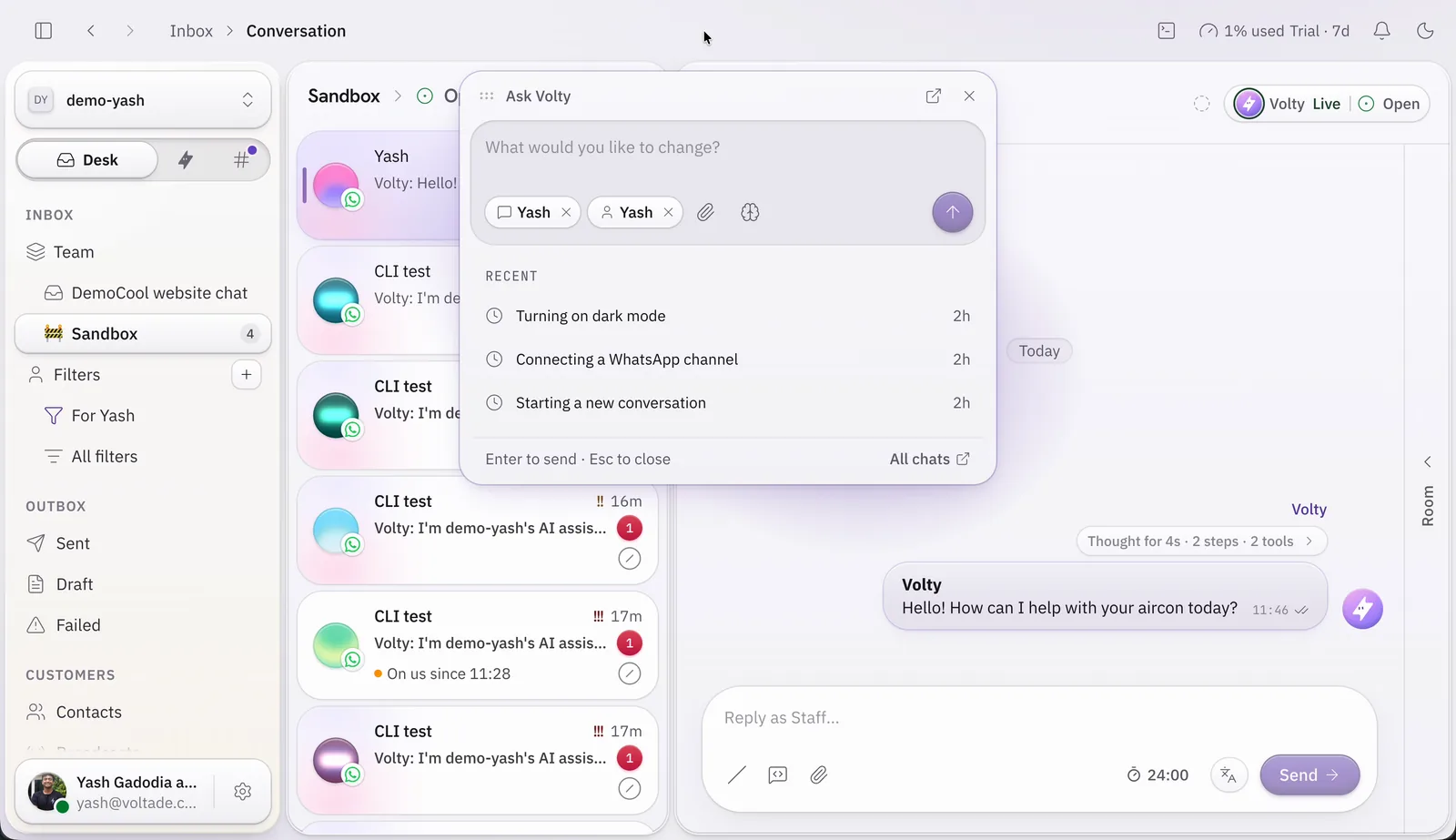
- 2
Ask it to change something. For example, "turn on dark mode" switches your theme without you looking for the button.
Watch this step (0:13)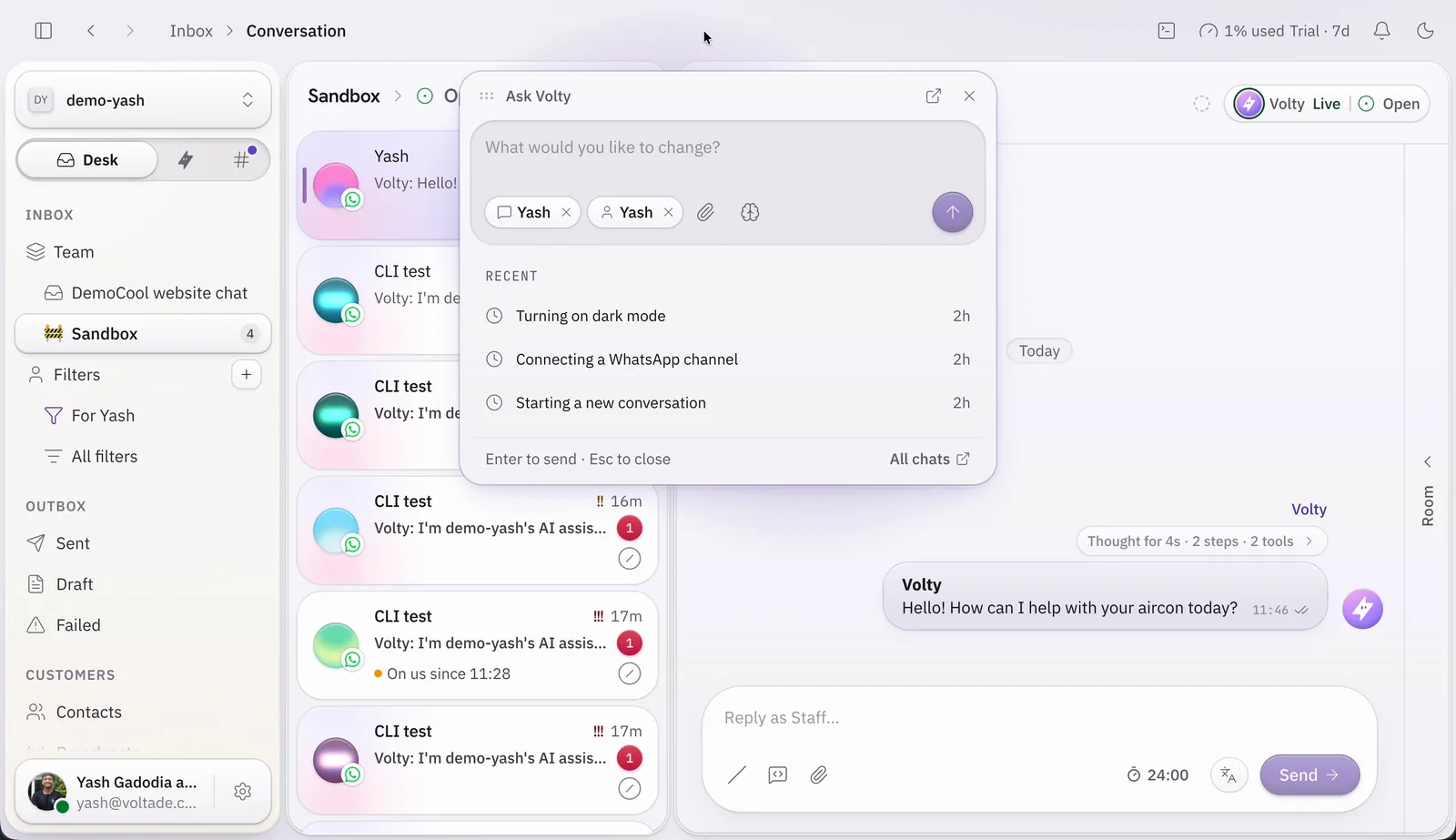
- 3
Ask it how to do something, for example "How can I add new users to my workspace?" It answers with the steps.
Watch this step (0:33)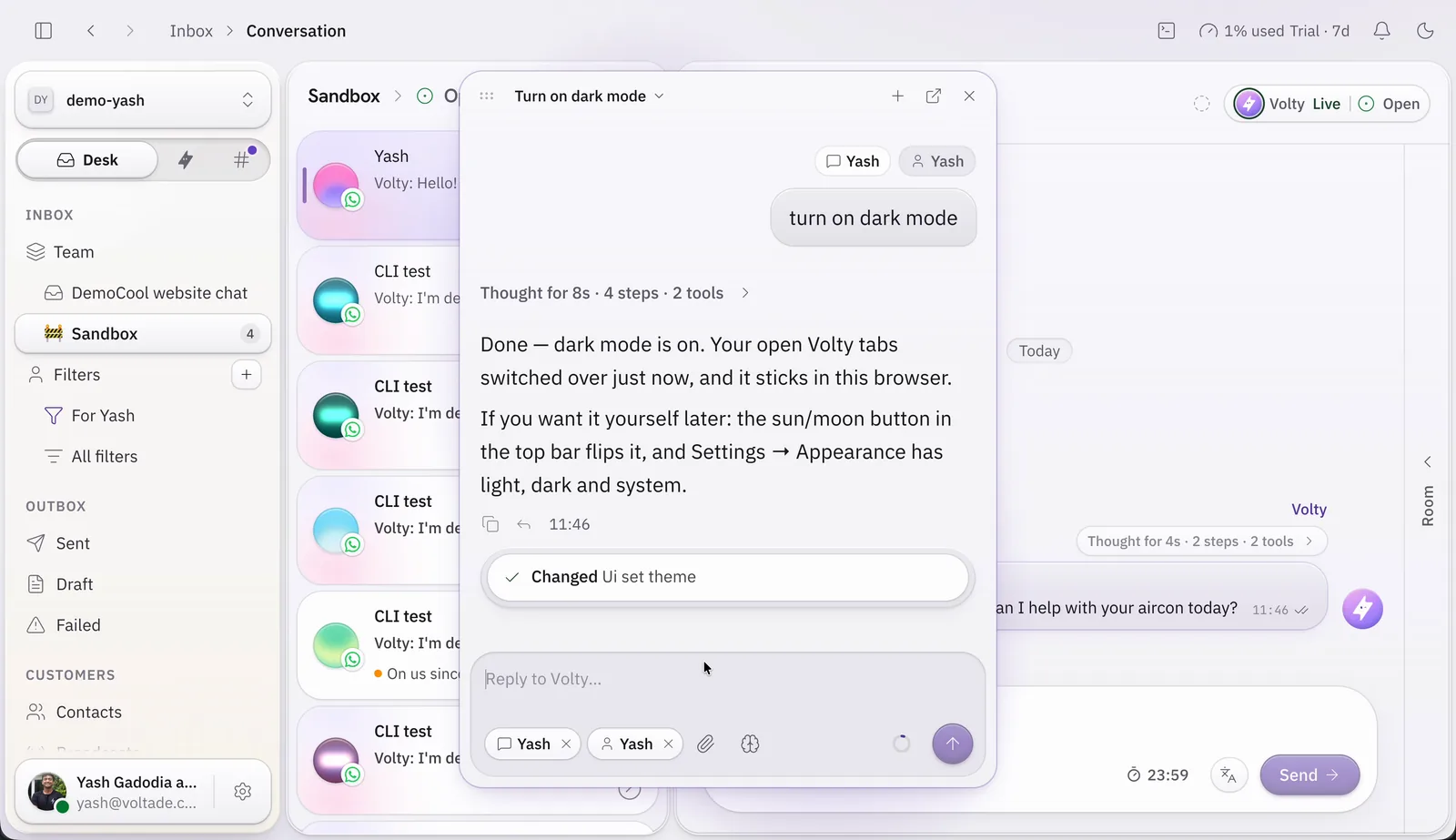
- 4
Where it can, Volty shows the form right in the chat, such as the invite form. Fill it in there: sending it sends the real invitation.
Watch this step (0:50)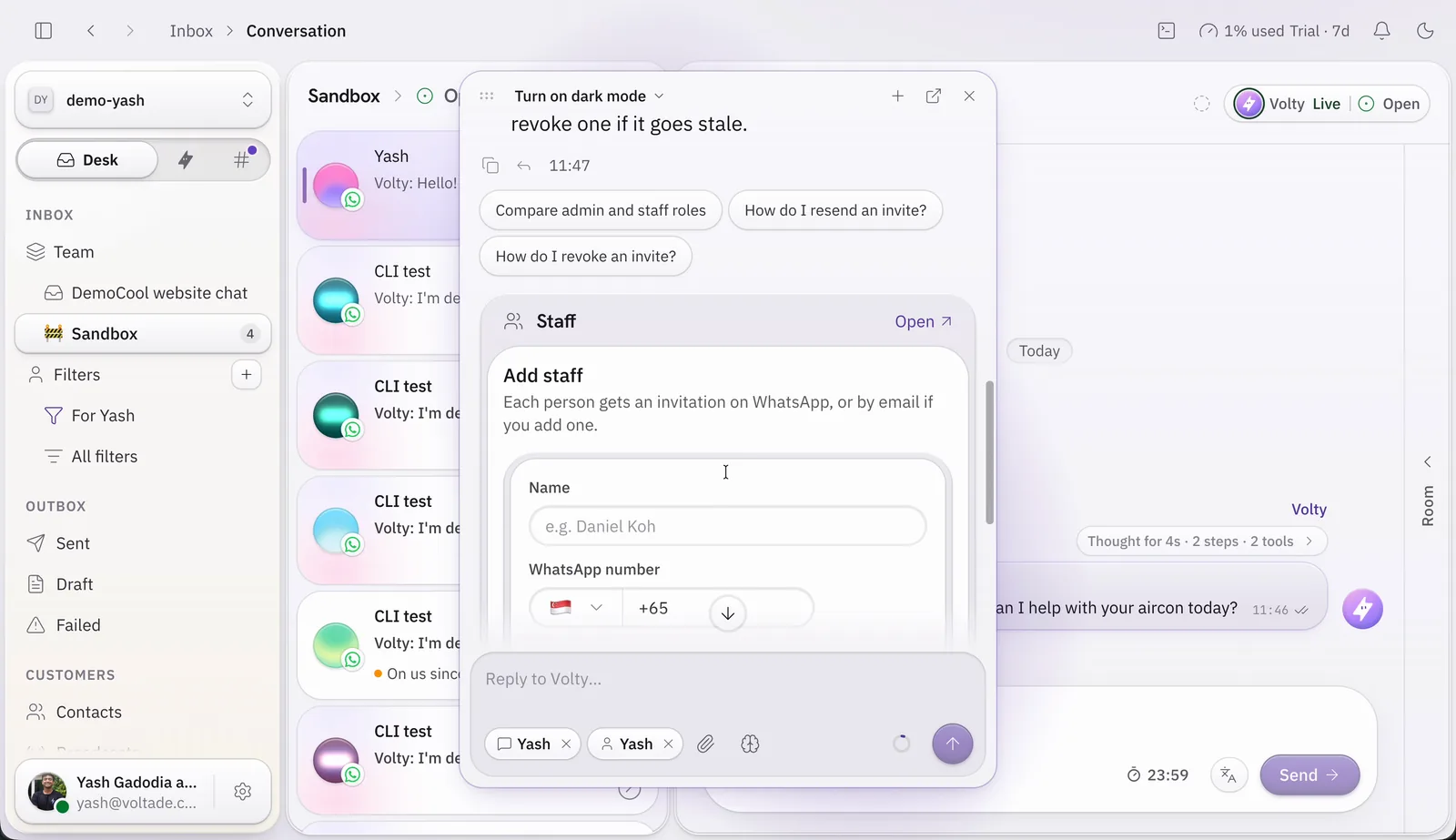
- 5
Prefer the page itself? Press Open in Volty's answer to go straight to it.
Watch this step (1:12)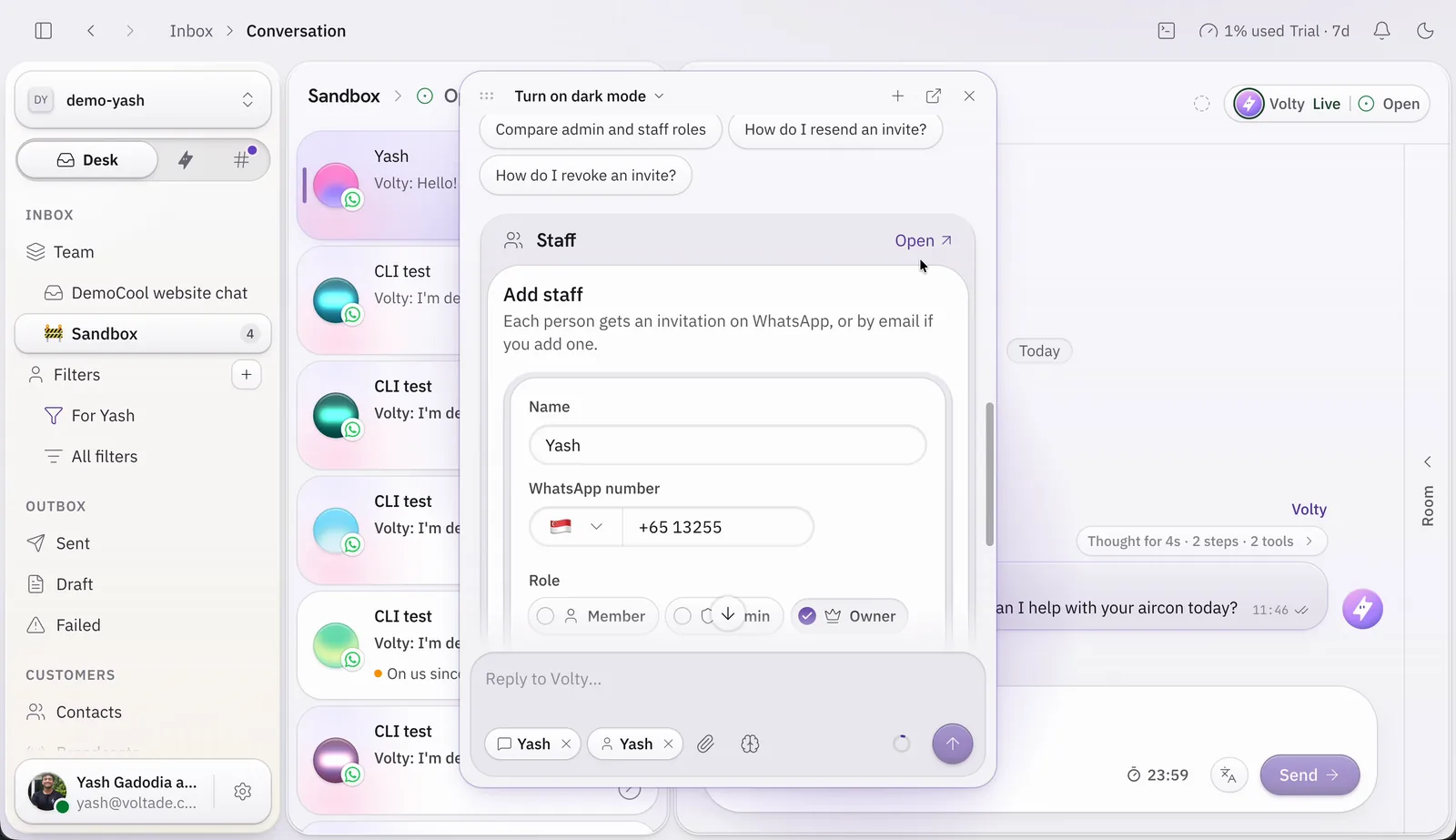
- 6
You can also set up your workspace from a coding agent such as Claude Code. See the Claude Code video.
Watch this step (1:18)
Make the most of it
- Not sure what Volty can do? Ask it: "What can you help me with?"
- Start a new chat for each task or customer. What you tell Volty in one chat isn't carried into a new chat unless it's saved to Volty's memory.
- If Volty didn't do what you told it, ask it why. Then save a lasting rule by starting your message with "Save as a rule:".
If it doesn't work
- Adding someone says "everyone is already a member".
- You're in an inbox's member list, which only controls who sees that inbox. Invite new people from the Staff page.
- An invited teammate never got the email.
- They need to accept the invite email before they can log in. Ask them to search their inbox and spam folder for it, then resend the invite to the same address if it has expired.
Up next

Transcript
The next thing to note is there is also this Ask Volty that's here on top of the screen. And this is what we recommend all of our customers to use in order to configure their workspace or ask questions about how to get started. So one example is like turn on dark mode. It's a bit contrived, this example, but it just shows you that you can even configure things in your Volty workspace just by talking to the agent. So what you'll see, Volty now is that Volty will turn on dark mode. Rather than having to find, oh, where is this dark mode button which is right here on the top right. So even when you ask Volty, like, how can I add new users to my workspace? This is also done just by talking to this Ask Volty agent. You can add in from the staff page, and then you can follow these instructions. And now we've also added this card in, which renders the actual UI, of what you will see. So you can even just type it in here, add in the number. And when you then send, when you press send invitation, it's the real invitation will be sent out. Because it's the component that's being rendered in this chat interface. But if it's a bit confusing to you, no problem. Just press open here, and it will direct you to the page. And then you can just key that in. In a previous video, I shared about how you can connect Volty to your Claude Code. And that's also a very quick way to get started. So watch that video if you haven't already.
Start your Sandbox Trial
Sign up for our 7-day trial. No credit card needed.
Future-proof your business with AI. Hear from our CEO

The Leonard and Volty Show · October 8, 2026
Meta now charges for WhatsApp replies

The Leonard and Volty Show · October 1, 2026
Too busy to hire?

The Leonard and Volty Show · September 21, 2026
From $500 chatbot jobs to agentic AI

The Leonard and Volty Show · September 10, 2026
Your AI is a new employee

The Leonard and Volty Show · September 4, 2026
Trust in the AI world

The Leonard and Volty Show · August 29, 2026
Does the AI model matter?

The Leonard and Volty Show · August 19, 2026
What are AI agents?
Meta now charges for WhatsApp replies. Here's what it means for your business, October 8, 2026