
The short answer
To connect a number to the WhatsApp Business API you sign in with a Facebook account, and that account has to belong to a Meta Business Portfolio at business.facebook.com. You do not need a Facebook Page, you do not post anything on Facebook, and your customers never see your Facebook profile.
There are two reasons:
1. Meta owns WhatsApp. The WhatsApp Business Platform runs on Meta's business tools, and Meta identifies the person setting it up through Facebook Login for Business.
2. Meta bills your messages through the portfolio. WhatsApp charges per message (see the WhatsApp Business API pricing guide), and those charges are billed to the payment method on the WhatsApp Business account that sits inside your Meta Business Portfolio.
Why Meta asks for a Facebook login
Every provider that connects the WhatsApp Business API, Volty included, uses Meta's Embedded Signup. Embedded Signup is built on Facebook Login for Business: the first screen asks you to authenticate with your Facebook or Meta Business Suite credentials, and every later screen acts on behalf of that person.
Meta needs a real, signed-in person for three things:
Meta also lets a business use a managed Meta account (a Meta account that is not a Facebook profile) in some business tools, but most businesses find a personal Facebook profile the fastest route, and it is what Embedded Signup shows by default.
What you do not need
How the pieces fit together
| Piece | What it is | Where it lives |
|---|---|---|
| Facebook account | The person who signs in and grants access | facebook.com |
| Meta Business Portfolio | Your company in Meta's tools (formerly Business Manager) | business.facebook.com |
| WhatsApp Business account | Holds your numbers, templates and payment method | Inside the portfolio |
| Phone number | The number customers message | Inside the WhatsApp Business account |
| Payment method | The card Meta charges for paid messages | On the WhatsApp Business account |
Meta's newer documentation also calls the WhatsApp Business account a WhatsApp account and the billing container a Messaging account. They are the same pieces under new names.
1. Create a Meta Business Portfolio
Skip this step if your company already has a portfolio. Ask whoever runs your Facebook or Instagram ads first: the portfolio they use is usually the right one, and creating a second one splits your business in two.
1. Log in to Facebook with your own profile, then open business.facebook.com.
2. Click the drop-down menu below Home in the top left, then Create a business portfolio.
3. Enter your business name as customers know it. It cannot contain special characters.
4. Enter your first name, surname and a business email address, then click Create.
5. Open the email Meta sends you and confirm the address.
6. Go to Settings > Business info and fill in the legal business name, address, phone number and website. Use the exact legal name on your company registration, because business verification compares the two.
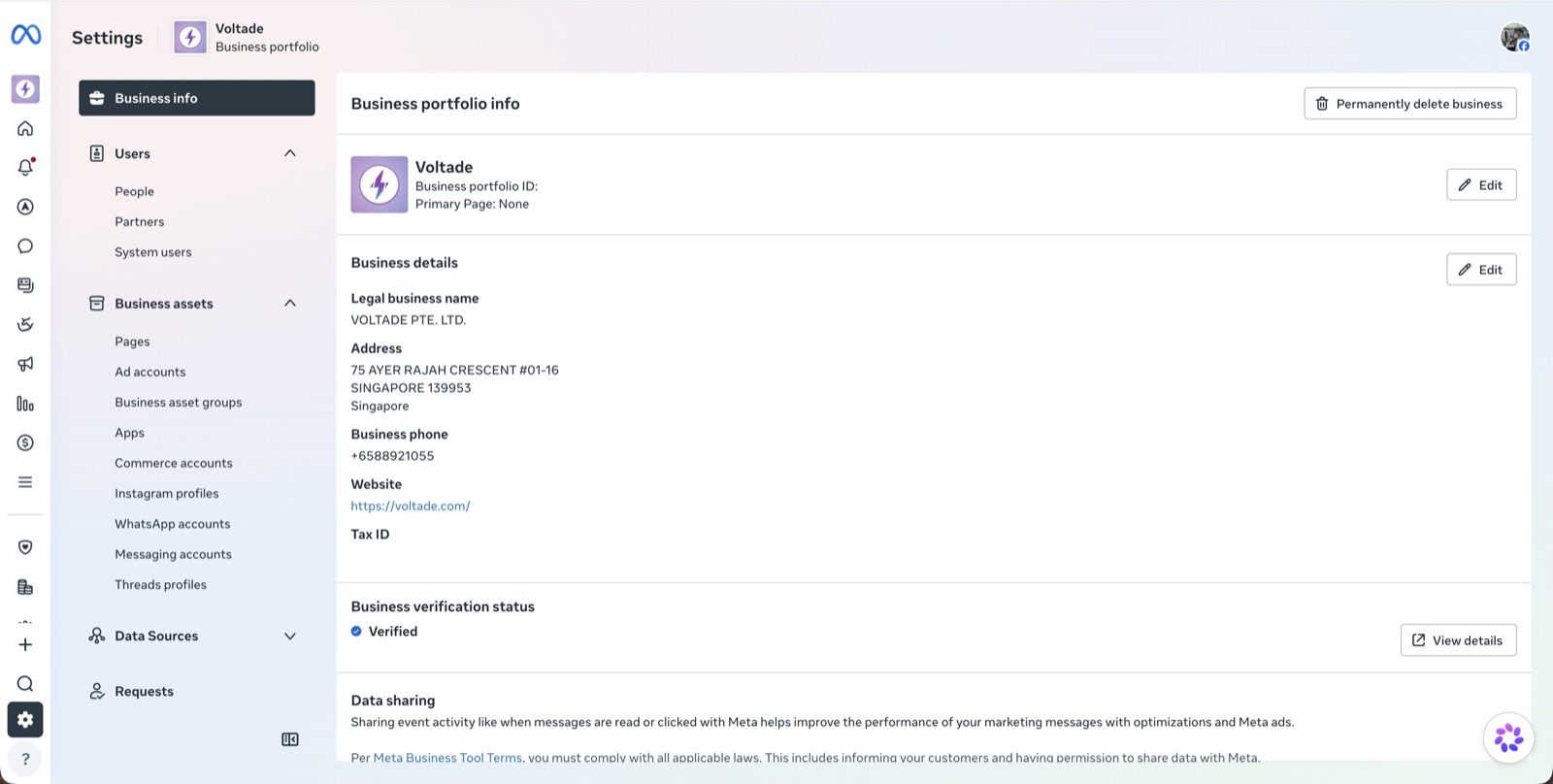
One person can create up to two business portfolios, and can be added to any number of portfolios that other people own.
You can also create the portfolio inside the connection flow itself: the business asset screen in Embedded Signup offers to create a new one if none exists. Creating it first in Meta Business Suite lets you fill in the legal details and add a second admin before you connect.
2. Add your Facebook user to the portfolio
The person who will click Log in with Facebook has to be on the portfolio with full control. If someone else created the portfolio, they add you:
1. In Meta Business Suite, open Settings > Users > People.
2. Click Invite people and enter the email address the person uses for Facebook.
3. Choose Full control (formerly called business admin) for whoever connects WhatsApp. Everyone else can have partial access (formerly employee) to just the assets they work on.
4. Assign assets if asked, then click Invite.
5. The invited person accepts the email invite while logged in to the Facebook profile that should join.
Only someone who already has full control sees People and can invite. If nobody at your company has full control, Meta lets you request it through the portfolio's settings.
Access levels you will see:
3. Connect your number with Log in with Facebook
In Volty, open Channels and connect a WhatsApp number. Volty explains what Meta will ask, then opens Meta's sign-in.
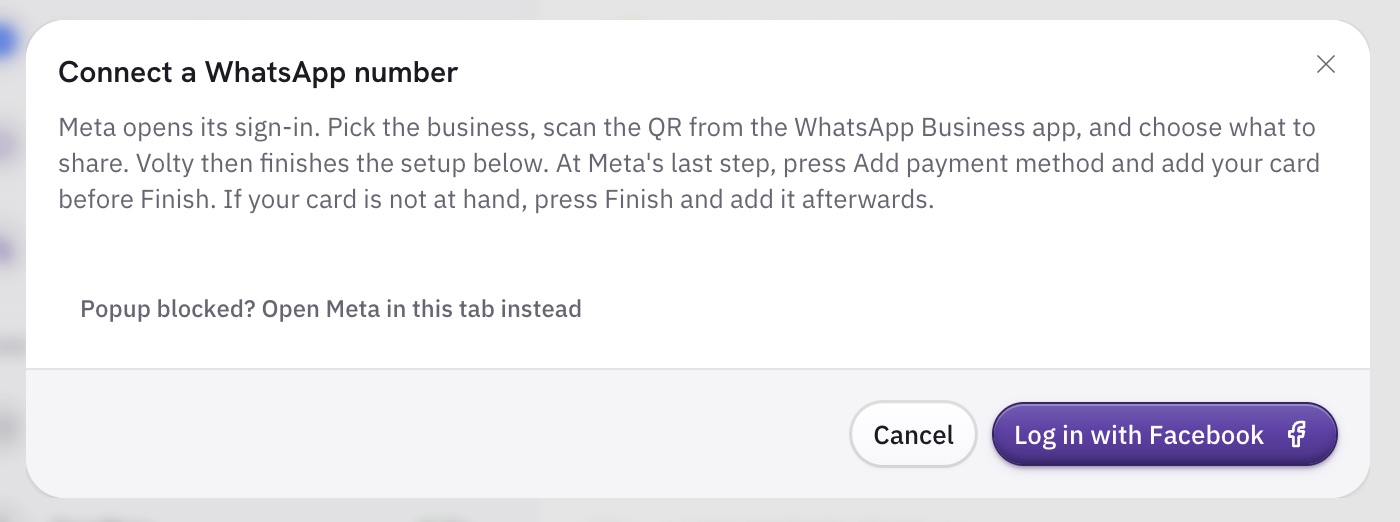
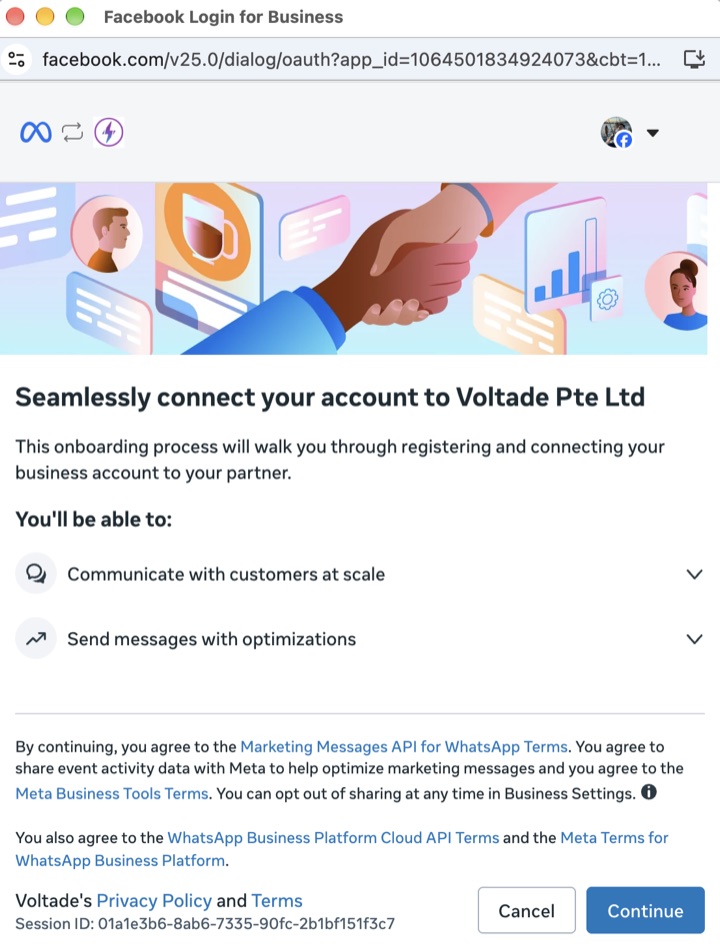
Meta's Facebook Login for Business window opens. Check that the profile picture at the top right is the Facebook user you added to the portfolio, then click Continue.
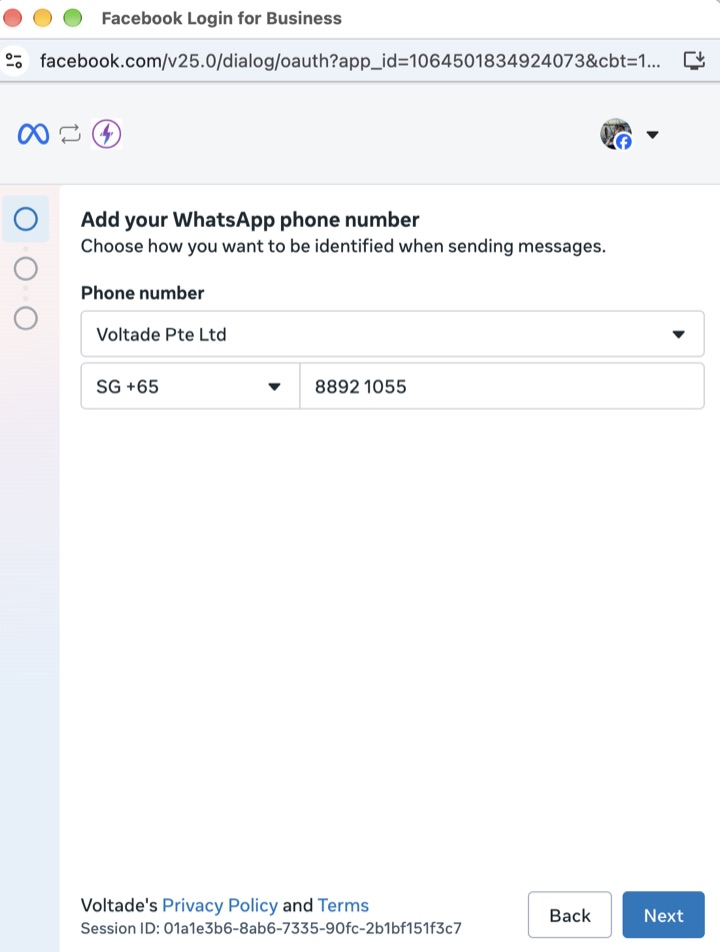
Enter the WhatsApp phone number you want to connect and choose how Meta verifies it. Since September 2026 Meta asks for the number first, before any business asset (why the order changed).
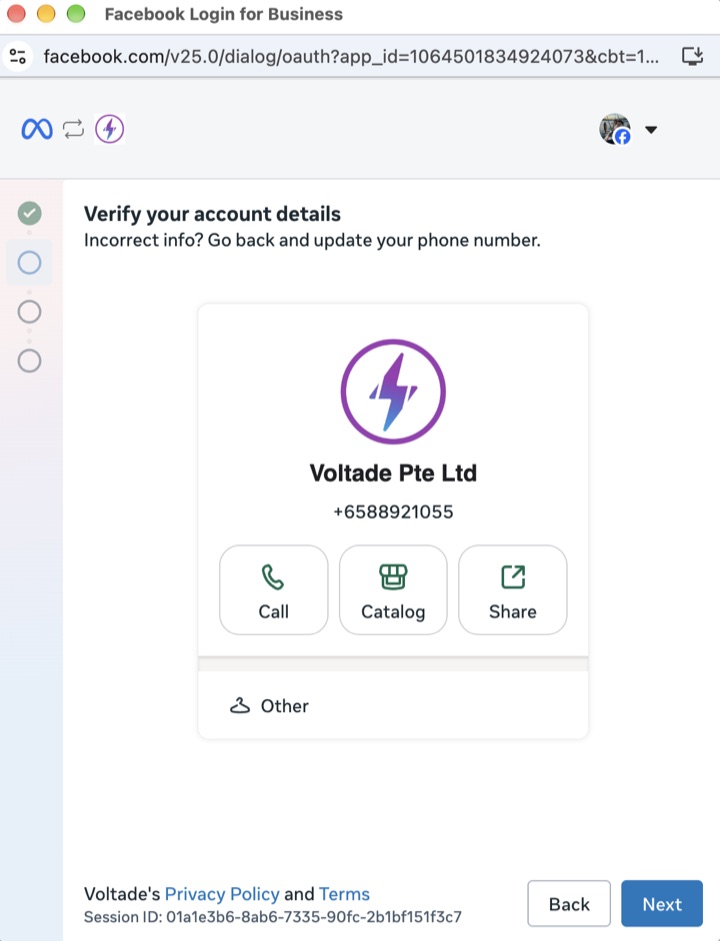
Check the business profile Meta shows for the number. If the number is already on the WhatsApp Business App, this is the profile from the app, and the connection runs through Coexistence.
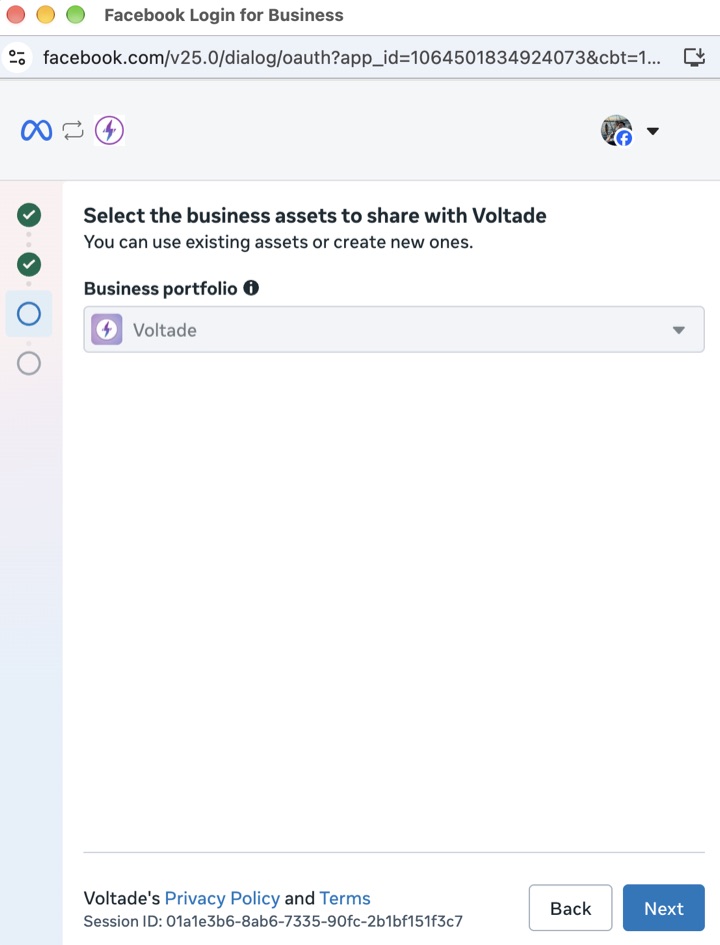
Select the business portfolio from step 1. Only portfolios where your Facebook user has the right access appear in this list. If yours is missing, go back to step 2.
On Meta's last step, press Add payment method and add your card before Finish. If the card is not at hand, press Finish and add it afterwards in Meta Business Suite under Billing & payments > WhatsApp Business accounts. Until a card is attached, paid messages such as broadcasts and templates sent outside the 24 hour window fail.
4. Check the result in your portfolio
Back in Meta Business Suite, open Settings > Business assets > WhatsApp accounts. Your number now appears with its display name, a Connected status and a quality rating.
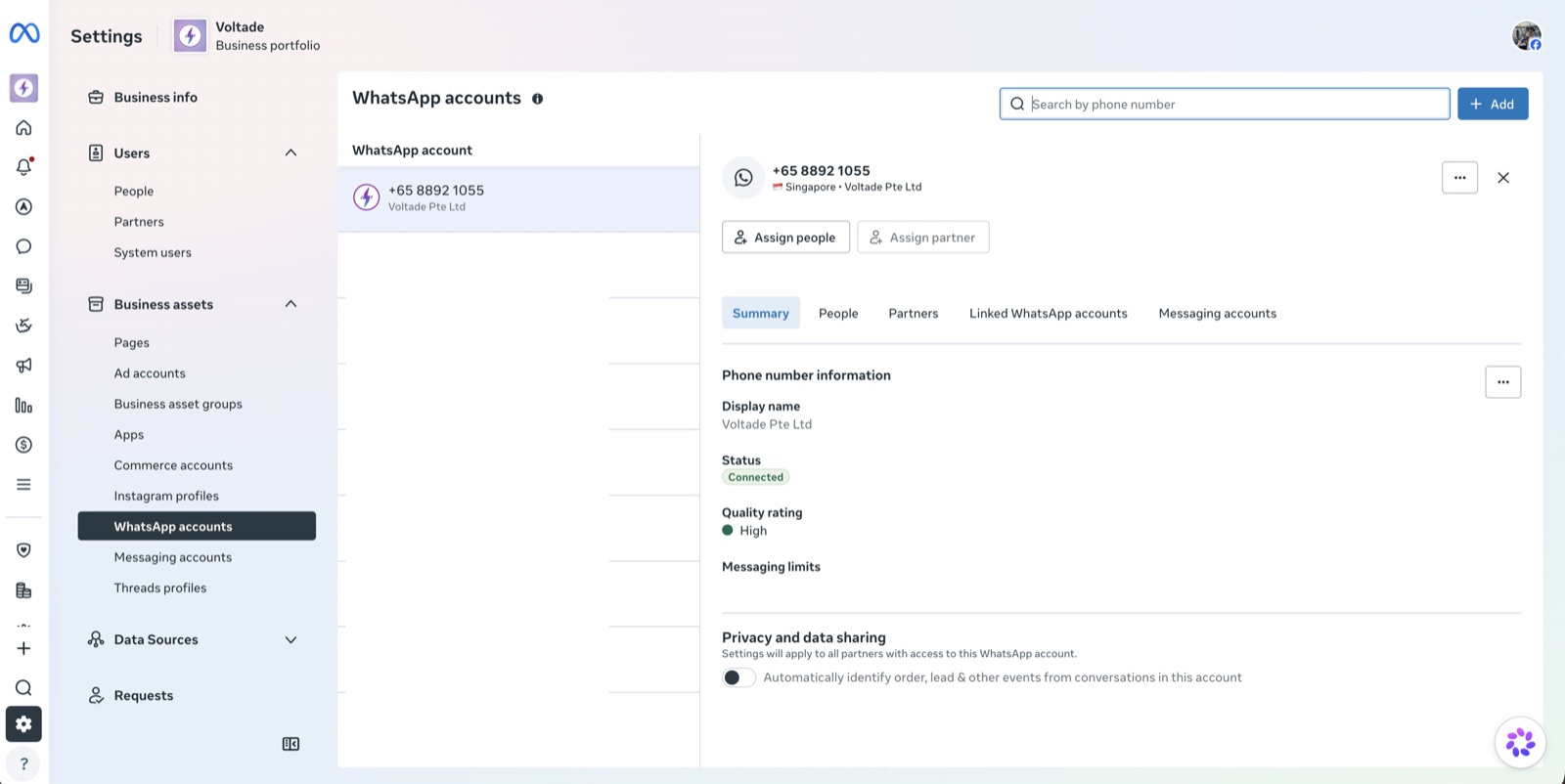
From here you can assign more people to the WhatsApp account, see which partners (your provider) have access, and remove a partner if you ever leave.
Keep the portfolio safe
Your WhatsApp number now depends on a Facebook login, so a locked Facebook account can lock your messaging.
Frequently asked questions
Related guides
Get help from a Meta Business Partner
Volty connects your number through Meta's own Embedded Signup, so the number, the portfolio and the billing stay in your name.
Start free trial. Our team can help you set up your portfolio and connect your number.